


+15 More

Digital Aura Portal - FZCO
Building A1, Dubai Digital Park, Dubai Silicon Oasis, Dubai, United Arab Emirates Premises Number 72647 - 001
Business registration number: 70647


gamer-choice.com © 2026
Digital Aura Portal - FZCO
Building A1, Dubai Digital Park, Dubai Silicon Oasis, Dubai, United Arab Emirates Premises Number 72647 - 001
Business registration number: 70647
 November 11, 20258 min ReadElsa
When you dive into a competitive shooter like Deadlock, you must ensure your PC delivers top-tier performance. Every single frame can make the difference between victory and defeat. If you want to secure flawless gameplay, you cannot allow any lag spikes or micro-freezes to occur. In this best Deadlock settings guide, we will show you how to optimize your game for smoother performance and maximum efficiency.
No matter how fine-tuned your Deadlock settings are, you won’t achieve consistent wins without the right teammates. Gamer Choice can help you Win Any Match thanks to our team of elite PRO players. We guarantee the highest possible win rates and the exact number of matches you wish to secure.
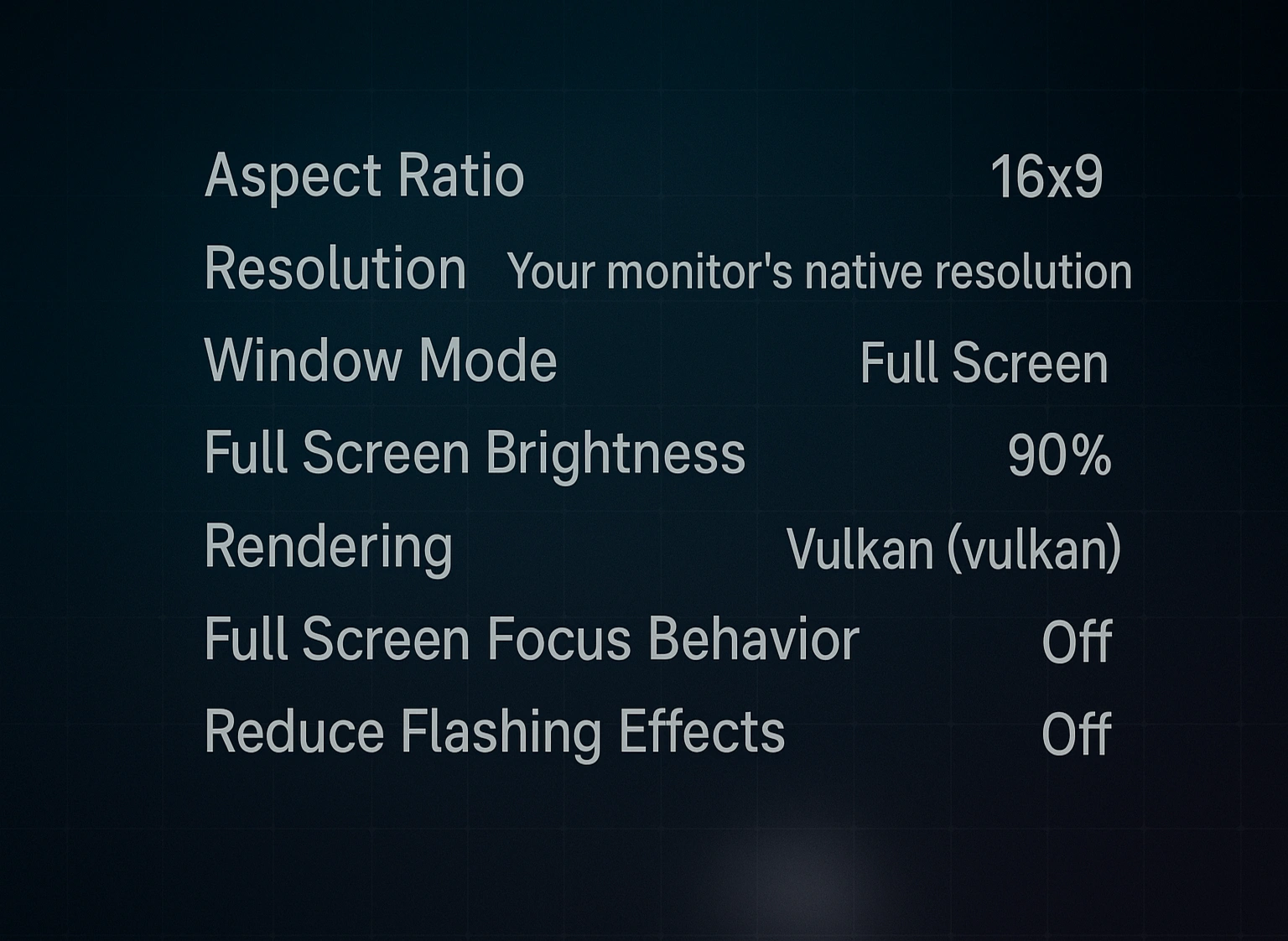
Let’s begin with the fundamental visuals—Resolution, Aspect Ratio, and Brightness. Although video tweaks don’t massively affect FPS, they greatly improve the look and clarity of your gameplay. Below, you’ll find the best Deadlock video settings for the ideal experience:
You can safely test out different Rendering modes. If you’re running on a lower-end system, switching to Direct3D 11 (dx11) might help. Brightness is also subjective—tweak it to what feels best for your screen. Applying these Deadlock settings will eliminate the blurriness many players encounter. Getting the right Aspect Ratio, Resolution, and Rendering options is key to achieving sharp visuals.
In a competitive FPS, you don’t need flashy visuals—simplicity wins. While Deadlock is visually impressive, too many visual effects can cause distractions in combat. Rather than admiring detailed creep models, focus on maximizing FPS. Here are the best Deadlock graphics settings that balance visuals and smooth performance:
A mid-range PC should easily handle these configurations. With this setup, you’ll achieve stable 60 FPS while still maintaining a decent level of graphical detail. Feel free to adjust the sliders further if you need even smoother gameplay. BLOG20
If you’re on a lower-end machine but still want to enjoy smooth gameplay, these optimized settings will give you a serious FPS boost. Here’s how to get the most out of your hardware with the best Deadlock FPS settings:
The main differences here involve Scaling Mode, Texture Quality, and Shadow Quality. Additionally, turning off minor visual features such as Depth of Field or Bloom can free up a few valuable frames. While these changes may seem small, together they can make a noticeable difference.
Buy Deadlock Accounts
Jump in with ready-to-play Deadlock accounts!

If lowering graphical settings still doesn’t do the trick, don’t give up yet. We’ve prepared a few additional techniques that can help you improve FPS and eliminate stutter during heated battles. Follow these extra Deadlock optimization tips below:
| Close Background Apps | Turning off the applications you do not use when playing can boost your PC performance for a bit. Leaving them open can consume extra system resources you want to save for the game. We highly recommend closing apps like messengers, antivirus software, and everything you use on a daily basis. |
| Update GPU Drivers | Deadlock is a fresh game, and GPU manufacturers try to release the corresponding driver updates as often as possible. Always check if you have the latest GPU drivers installed. This will help you improve FPS and reduce stuttering. |
| Overclock Hardware | Confident PC users can overlock CPU and GPU for increased performance. This trick can be dangerous if you are not confident in your abilities. Before changing any settings, make sure you have a stable cooling system to avoid overheating. |
| Optimize Launch Options | Customizable launch options are another way to improve the game’s performance. You can use launch options like "-high" to make your PC prioritize the title above all else. Commands like "-novsync" and "-novid" will always make the game run without V-Sync and skip the intro you see at launch. |
| Disable V-Sync | Speaking of V-Sync, it is important to keep it disabled all the time. Activating it results in reduced performance since your FPS will be fixed to your monitor’s refresh rate. This means you might not be able to enjoy more than 75 FPS if your monitor is only 75 Hz. |
These advanced Deadlock performance tweaks are your final line of defense for smoother gameplay. If your FPS still refuses to improve, it might be time for a hardware upgrade. As Deadlock evolves, its system demands will likely rise—so upgrading sooner or later will become inevitable if you want to keep enjoying the game at its best.
Mouse settings are deeply personal in every shooter. Your preference depends on your DPI, mousepad size, and comfort level. However, if you’d like to test a proven setup, we’ve got you covered. Here are the best Deadlock mouse settings for optimal control:
These values were tested using a 400 DPI mouse. If you’re running a higher DPI—say 800—you should lower your in-game sensitivity by half (e.g., to 1.05). With this setup, you’ll be able to turn around quickly and smoothly, even with limited mousepad space.
In Deadlock, sound awareness is critical. Detecting footsteps or ability cues before your enemies spot you can mean survival or death. Like other competitive shooters, you should always play with headphones to catch every sound cue. Use these audio settings to enhance your spatial awareness:
Additional audio settings, such as your Push-to-Talk keybind, are entirely up to your comfort. You can leave it as the default “T” or reassign it to any key you prefer.
Config files allow for deeper optimization that might give you an extra performance edge. Although they reduce visual fidelity, you’ll get higher FPS and smoother gameplay. Below is the best Deadlock config setup for achieving maximum performance:
cl_input_enable_raw_keyboard 1
engine_low_latency_sleep_after_client_tick 1
set shadows 0
cl_updaterate 60
cl_interp_ratio 1
cl_resend 0
cl_ragdoll_limit 0
func_break_max_pieces 0
fps_max 0
fps_max_tools 0
fps_max_ui 60
mobile_fps_increase_during_touch true
To apply this, open the autoexec.cfg file in the “cfg” directory. You can access it by right-clicking Deadlock in your Steam Library, selecting “Properties,” navigating to “Installed Files,” and clicking “Browse.” From there, go into the “game” folder, open “citadel,” and locate the “cfg” folder.
Once you’ve saved these commands in the file, remember to execute the exec autoexec command through the in-game console every time you launch Deadlock.
The most effective Deadlock settings focus on balancing visual quality with maximum FPS. You can use the following configuration for optimal results:
To maintain a fluid experience without input lag or stuttering, aim for a consistent 60 FPS or higher during gameplay.
A sensitivity of 2.10 paired with a 400 DPI mouse offers excellent control and precision, making it ideal for most players.
Below are the recommended Deadlock mouse settings for better accuracy and smoother aiming:
If your performance is dropping, try these simple but effective tweaks to improve smoothness and frame rate:
Yes, maintaining 60 FPS ensures a smooth and responsive experience, even during the most action-packed battles.
Despite being relatively new, Deadlock runs efficiently and is optimized well for both mid-range and high-end systems.
Most users report achieving between 60 and 240 FPS depending on their hardware specifications and chosen settings.
By now, you should know exactly how to fine-tune Deadlock for peak performance. We hope this guide helped you achieve more stable gameplay and smoother visuals. With these Deadlock settings, you’ll enjoy higher FPS, precise aiming, and overall improved consistency. Don’t hesitate to experiment further—the developers continuously update the game and introduce new options for customization. That’s all for now; see you in Deadlock!