


+15 More

Digital Aura Portal - FZCO
Building A1, Dubai Digital Park, Dubai Silicon Oasis, Dubai, United Arab Emirates Premises Number 72647 - 001
Business registration number: 70647


gamer-choice.com © 2026
Digital Aura Portal - FZCO
Building A1, Dubai Digital Park, Dubai Silicon Oasis, Dubai, United Arab Emirates Premises Number 72647 - 001
Business registration number: 70647
 August 30, 20257 min ReadElsa
Destiny Rising is the newest entry in the Destiny series and also the first title released exclusively for mobile platforms. Developed by NetEase in partnership with Bungie, this official gacha game doesn’t have native PC support. Still, many players want to enjoy it on a bigger screen. The good news is – yes, it’s possible. By using Android emulators, you can replicate a mobile environment on your PC and run the game there. In this guide, we’ll explain exactly how to play Destiny Rising on PC, recommend the best emulators, provide detailed installation steps, and outline the performance settings to ensure smooth gameplay. Since this method isn’t officially supported, you may run into some technical hiccups due to emulator compatibility, but the game itself remains fully playable.
Best Emulators for Destiny Rising Android emulators have been around for years, and because Destiny Rising doesn’t differ between iOS and Android, they’re your only way to bring the game to PC. These programs mimic a smartphone environment—down to letting you choose the phone model—which allows you to launch nearly any app. Currently, two emulators stand out as stable and reliable for this game, provided your computer meets the minimum requirements. Both are also free. Here’s a quick look at their advantages:
| Emulator | Key Advantages | Best For |
|---|---|---|
| BlueStacks | Most popular emulator, stable performance, strong community support, macros, multi-instance features. Requires the Pie 64-bit version to avoid crashes. | Players who want proven reliability and advanced tools. |
| MuMuPlayer | Lightweight emulator, high FPS support, excellent for lower-end PCs, customizable performance settings, strong Vulkan support. | Players who prioritize smooth visuals and optimization. |
Each emulator lets you play Destiny Rising with either mouse and keyboard or Bluetooth controller support, so you can pick whichever feels most natural. Even better, the game itself includes built-in HUD icons and a dedicated settings tab for PC-style inputs, showing that the developers anticipated fans would use emulators. Let’s go through each option in detail.
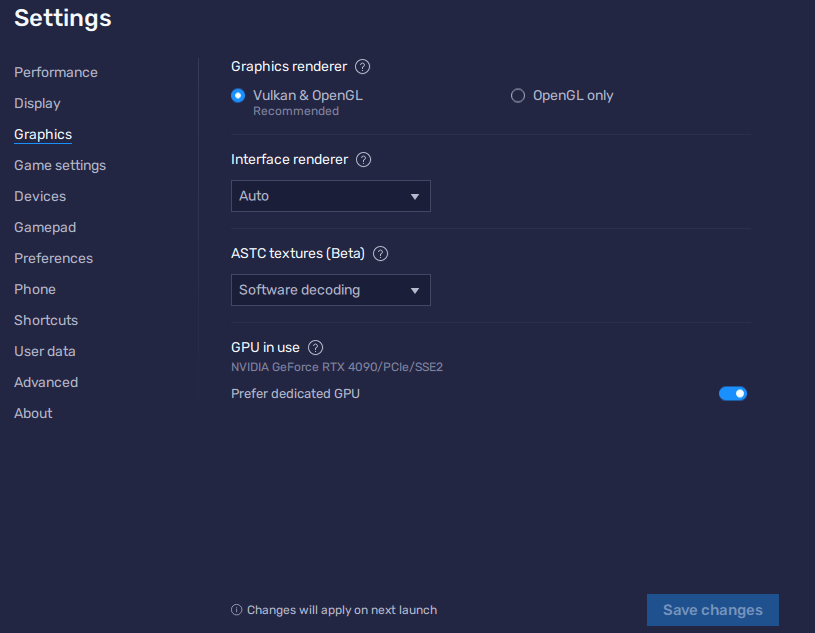
BlueStacks remains the most popular Android emulator and is an excellent choice for Destiny Rising. The important detail is to download the BlueStacks 5 Pie 64-bit build—other versions can cause frequent crashes. With the right version, you’ll be up and running quickly, and you can adjust settings to achieve the best performance.
Steps to install and launch Destiny Rising with BlueStacks:
Recommended BlueStacks performance settings:
With these optimizations, Destiny Rising should run stably on BlueStacks. If crashes occur, double-check that you’re running the Pie 64-bit version specifically.
MuMuPlayer is another great emulator for Destiny Rising. It’s lightweight, efficient, and often provides smoother gameplay on mid- to low-end PCs compared to heavier emulators. Many users report that Destiny Rising works best on MuMu when using the Vulkan renderer.
Steps to install Destiny Rising with MuMuPlayer:
Recommended MuMu settings for smooth performance:
Since MuMu emulates a tablet environment, you can expand the display to widescreen and enjoy Destiny Rising with sharper visuals than you’d ever get on a mobile device.
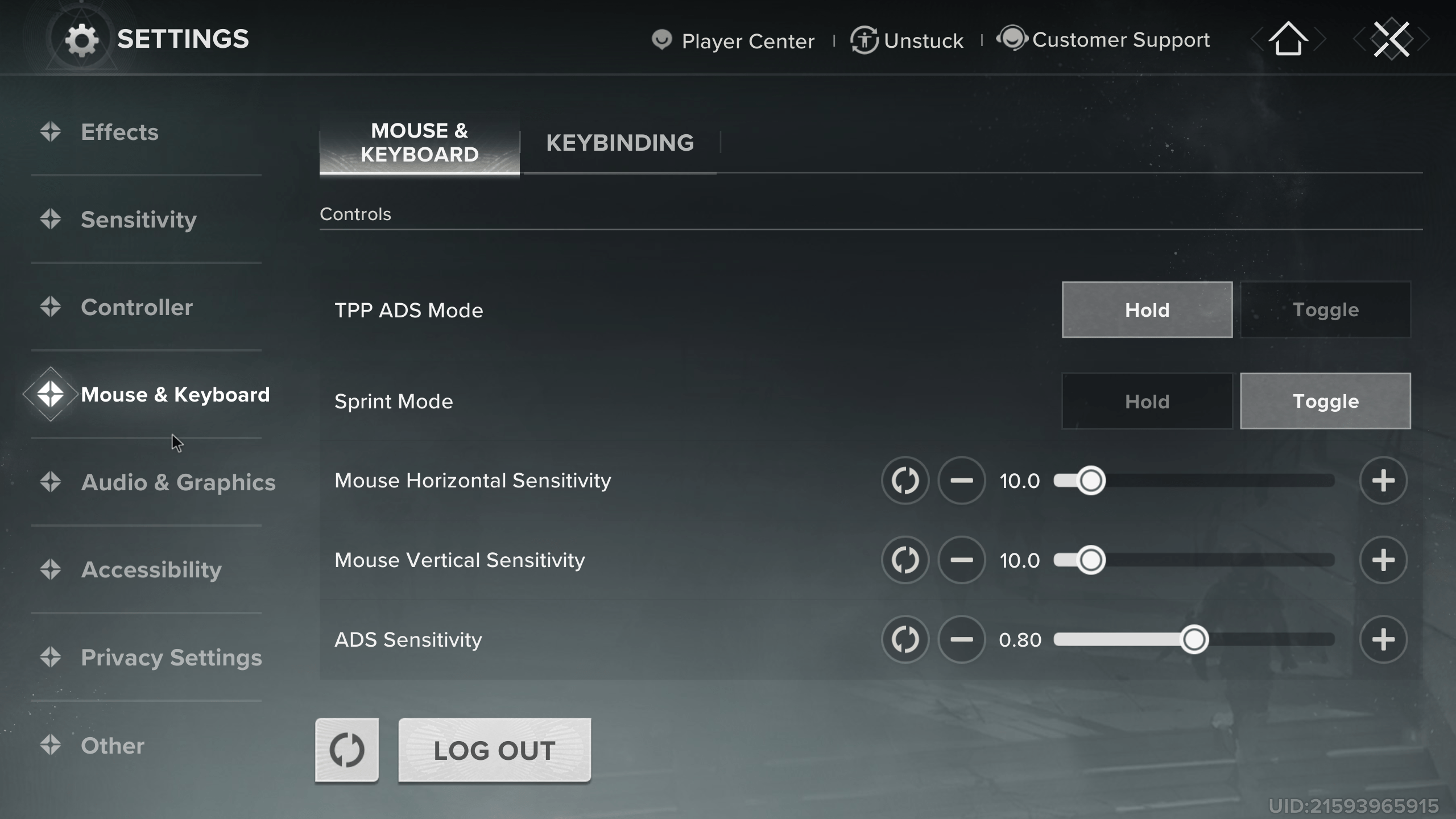
After installing Destiny Rising through an emulator, it’s crucial to fine-tune your setup. Both BlueStacks and MuMu give you extensive customization over graphics, resolution, and system resources. With the right tweaks, you’ll eliminate stuttering, tearing, or crashes.
Key settings to focus on:
By setting these options, Destiny Rising feels like a proper PC game with sharper visuals, smoother frame rates, and responsive controls, while sparing your phone’s battery and heat.
Even when using the correct emulator, Destiny Rising can run into issues if configured incorrectly. Fortunately, most problems have straightforward fixes.
Common issues and solutions:
With the proper build, graphics renderer, and optimized resources, Destiny Rising will run smoothly and consistently.
Yes, while there’s no official PC client, you can run Destiny Rising using Android emulators such as BlueStacks or MuMuPlayer.
Yes, controller support is available on both emulators. You can connect Xbox, PlayStation, or other compatible controllers through USB or Bluetooth.
Crashes usually occur when using the wrong build. Always install BlueStacks 5 Pie 64-bit and select Vulkan as the graphics renderer.
Yes, the game is completely free to play on PC through emulators, requiring only a Google Play account to access it.
For now, Android emulators are the only way to enjoy Destiny Rising on PC, and it’s unlikely that will change. Even if the game isn’t officially canon (which could change down the line), it brings a fresh spin on the Destiny universe by introducing named heroes with unique powers. The best part: you can try it for free. With emulators like BlueStacks and MuMu, and with Gamer Choice guides, you’ll be able to enjoy Destiny Rising on a big screen with optimized performance.