


+15 More

Digital Aura Portal - FZCO
Building A1, Dubai Digital Park, Dubai Silicon Oasis, Dubai, United Arab Emirates Premises Number 72647 - 001
Business registration number: 70647


gamer-choice.com © 2026
Digital Aura Portal - FZCO
Building A1, Dubai Digital Park, Dubai Silicon Oasis, Dubai, United Arab Emirates Premises Number 72647 - 001
Business registration number: 70647
 June 13, 20257 min ReadElsa
Experiencing stutters or lag while trying to enjoy the newest installment of the Monster Hunter series? You’re not alone! The game’s breathtaking visuals and massive environments demand a lot from even powerful PCs.
Don’t worry—we’ve got you covered. This guide walks you through the best settings to use in Monster Hunter Wilds to optimize both visual fidelity and performance. From smoother gameplay to higher FPS, our recommendations will help you get the most out of your hunting sessions.
If you’re just getting started, consider Ranking Up Your Hunter quickly with Gamer Choice. Skip the grind and let our expert players handle the early game progression for you. Fast results and the best pricing—only at Gamer Choice.
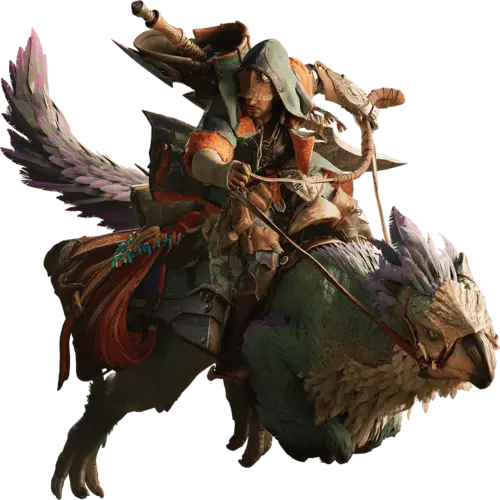
Buy MH Wilds Account
Get Monster Hunter Wilds accounts with top gear!

The trick to making Monster Hunter Wilds run beautifully while maintaining smooth gameplay lies in adjusting the best settings for graphics. Here's how you can strike that balance:
These are the best settings tailored for average PC builds. Players with aging systems should consider the alternative configuration we’ll cover later in this guide. Don’t forget—adjusting brightness so the darkest icon is just visible can drastically improve the overall color vibrancy.
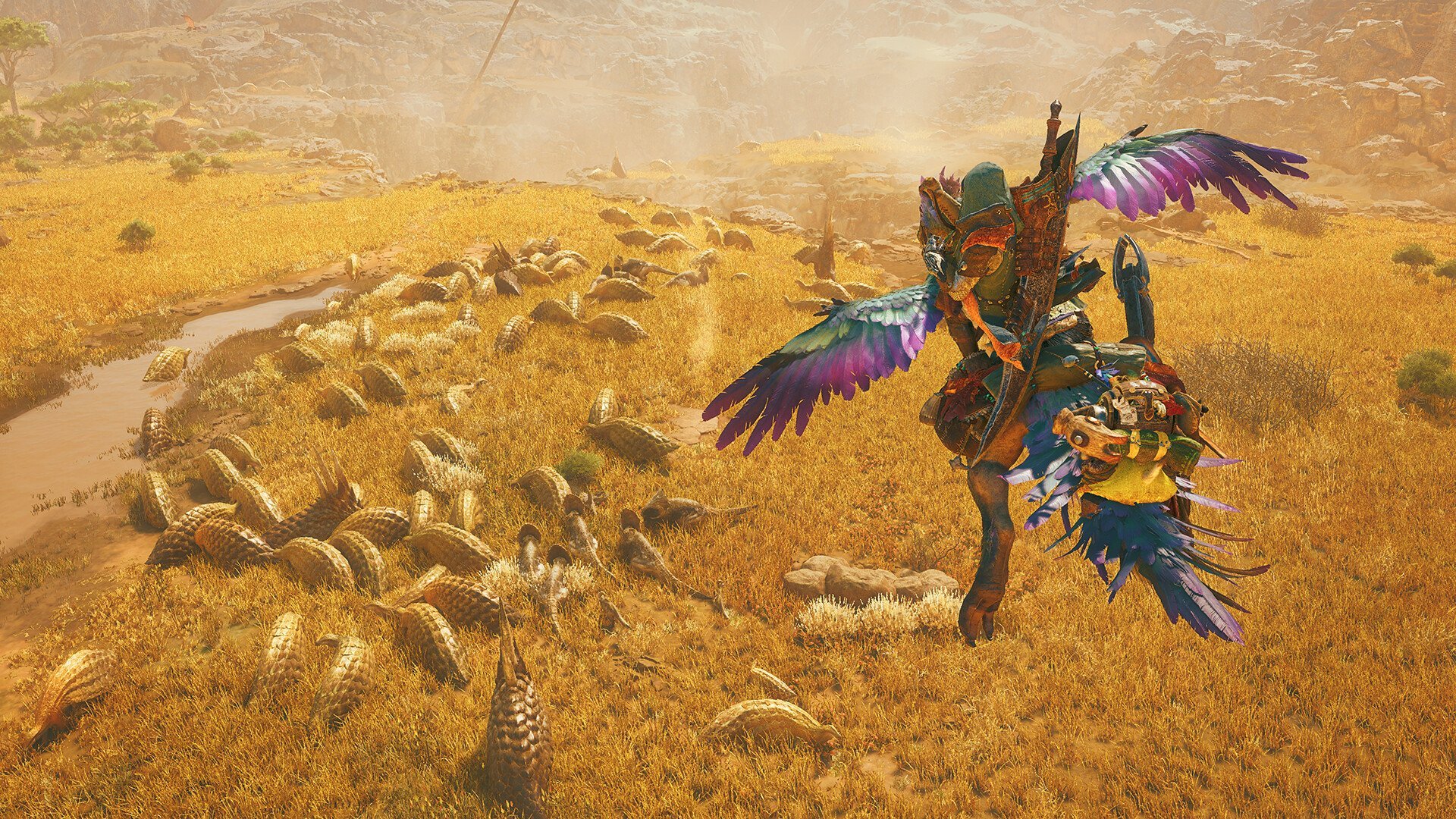
Optimizing display settings goes hand-in-hand with tweaking the best settings for graphics. It greatly affects both how good the game looks and how smoothly it runs. Check out these optimal options:
These tweaks enhance immersion and responsiveness. Following these best settings recommendations should make a noticeable difference, especially during fast-paced hunts.
For those on lower-end systems, it’s time to squeeze every frame possible. These best settings prioritize frame rate while sacrificing some visual fidelity:
Most of the best settings here lean toward performance-first logic. Reducing textures and effects gives your system much-needed breathing room. Experiment with upscaling modes depending on how much FPS you need.
Even after applying all the best settings from above, some players may still experience sluggish performance. Here are a few practical tips to increase FPS even further:
| Tip | Description |
|---|---|
| Cap Background FPS | Set the background FPS cap to around 15 FPS to free up resources for gameplay. |
| Close Background Applications | Shut down unnecessary programs running in the background, as they can hog resources. |
| Update Drivers | Ensure your GPU drivers are up to date. Both Nvidia and AMD frequently release performance updates. |
| Try Overclocking | Slightly overclock your GPU or CPU for an FPS boost if you are comfortable with the process. |
| Lower In-Game Settings | Reduce settings like shadows, texture quality, and volumetric fog to gain significant FPS improvements. |
| Enable DLSS or FSR | Use DLSS (for Nvidia cards) or FSR (for AMD cards) to upscale graphics and boost performance. |
| Set Windows Power Plan to High Performance | Switch to High Performance in Windows to prevent CPU throttling. |
| Disable Fullscreen Optimizations | Right-click the game’s executable, go to properties, and disable fullscreen optimizations for better performance. |
| Adjust Nvidia/AMD Control Panel Settings | Set power management to "Prefer maximum performance" and enable low-latency mode. |
| Optimize In-Game Resolution | Lower your resolution to ease GPU load and improve FPS. |
| Turn Off V-Sync | Disabling V-Sync can reduce input lag and improve frame rates, especially on high-refresh-rate monitors. |
| Keep Your System Clean | Regularly clean dust from your PC and ensure proper airflow to prevent thermal throttling. |
The secret to smoother gameplay isn’t just the best settings in-game, but also how you manage system resources. Small system-side tweaks can go a long way in improving stability and frame rates.
Before you even launch the game, make sure your hardware meets the system requirements. As a modern 2025 release, Monster Hunter Wilds can be very demanding:
Minimum System Requirements for PC:
| OS | Windows 10 64-bit |
| CPU | Intel Core i5-10400 or AMD Ryzen 5 3600 |
| RAM | 16 GB RAM |
| GPU | NVIDIA GeForce GTX 1660 or AMD Radeon RX 5500 XT |
| Storage | 75 GB available space |
Recommended System Requirements for PC:
| OS | Windows 10 64-bit |
| CPU | Intel Core i5-10400 or AMD Ryzen 5 3600 |
| RAM | 16 GB RAM |
| GPU | NVIDIA GeForce GTX 2060 or AMD Radeon RX 6600 |
| Storage | 75 GB available space |
One last tip: install the game on an SSD instead of an HDD. This simple move eliminates micro stutters and helps the game load much faster.
The main hardware difference lies in GPU capacity, indicating that Monster Hunter Wilds relies heavily on graphics horsepower more than processing power.
The best settings include using Balanced or Performance Upscaling Mode, setting Upscaling Sharpness to 0.5, turning off Anti-Aliasing and Render Scaling, and setting most visual settings like Texture, Mesh, and Shadow Quality to Low for smoother performance.
Aiming for at least 60 FPS is recommended for consistent gameplay, though 90–120+ FPS offers a noticeably smoother experience if your system can handle it.
Lower graphics-intensive options such as shadows and water effects, ensure drivers are updated, and use performance-enhancing tools like DLSS or FSR for improved frame rates.
Yes, 60 FPS offers stable and fluid gameplay and is a reliable benchmark for most players seeking smooth performance.
The game performs well on current hardware but can be demanding in areas with high visual effects, especially shadows and lighting, which may require adjustments.
On optimized settings, mid-tier systems typically achieve around 60–80 FPS, while high-end setups can push past 100 FPS.
Raise texture quality, enable high-res assets, and tweak brightness to enhance image clarity without causing major performance drops.
The game is primarily GPU-intensive due to its detailed environments, though CPU load can also be notable when handling effects like render distance or AI behavior.
Increase texture quality and turn on effects like bloom or ambient occlusion to make visuals sharper while monitoring performance impact.
Buy MH Wilds Account
Get Monster Hunter Wilds accounts with top gear!
That concludes our guide on the best settings for Monster Hunter Wilds. Achieving the perfect balance between visuals and frame rate is essential for the most enjoyable hunting experience.
Make sure to adjust key graphics and display options, use upscaling and frame generation, and apply all tips mentioned to get a noticeable FPS boost. And don’t forget—keeping your drivers up to date and capping background FPS can offer even better stability. Happy hunting from the team at Gamer Choice!