


+15 More

Digital Aura Portal - FZCO
Building A1, Dubai Digital Park, Dubai Silicon Oasis, Dubai, United Arab Emirates Premises Number 72647 - 001
Business registration number: 70647


gamer-choice.com © 2026
Digital Aura Portal - FZCO
Building A1, Dubai Digital Park, Dubai Silicon Oasis, Dubai, United Arab Emirates Premises Number 72647 - 001
Business registration number: 70647
 June 19, 20257 min ReadElsa
The brand-new World of Warcraft expansion is finally here, and players are eager to dive into its content and explore what Blizzard has introduced this time. If you’re running into performance issues, don’t worry—this wow graphics guide for The War Within is here to help you boost your FPS and ensure smoother gameplay.
Performance struggles shouldn’t prevent you from securing endgame loot. If you’re constantly tweaking settings instead of tackling Mythic+ bosses, check out the Mythic +2-20 Dungeons Boost at Gamer Choice. Select any keystone level and the number of runs you need to maximize your rewards. You can either play alongside the team if your schedule allows, or let PRO players at Gamer Choice handle everything for you. It's an efficient and reliable service to enhance your Mythic+ progress. Now, let’s dive into optimizing your wow graphics settings.

Buy WoW Boost
Get Raid Carries, Mythic+ Runs & Leveling Services!

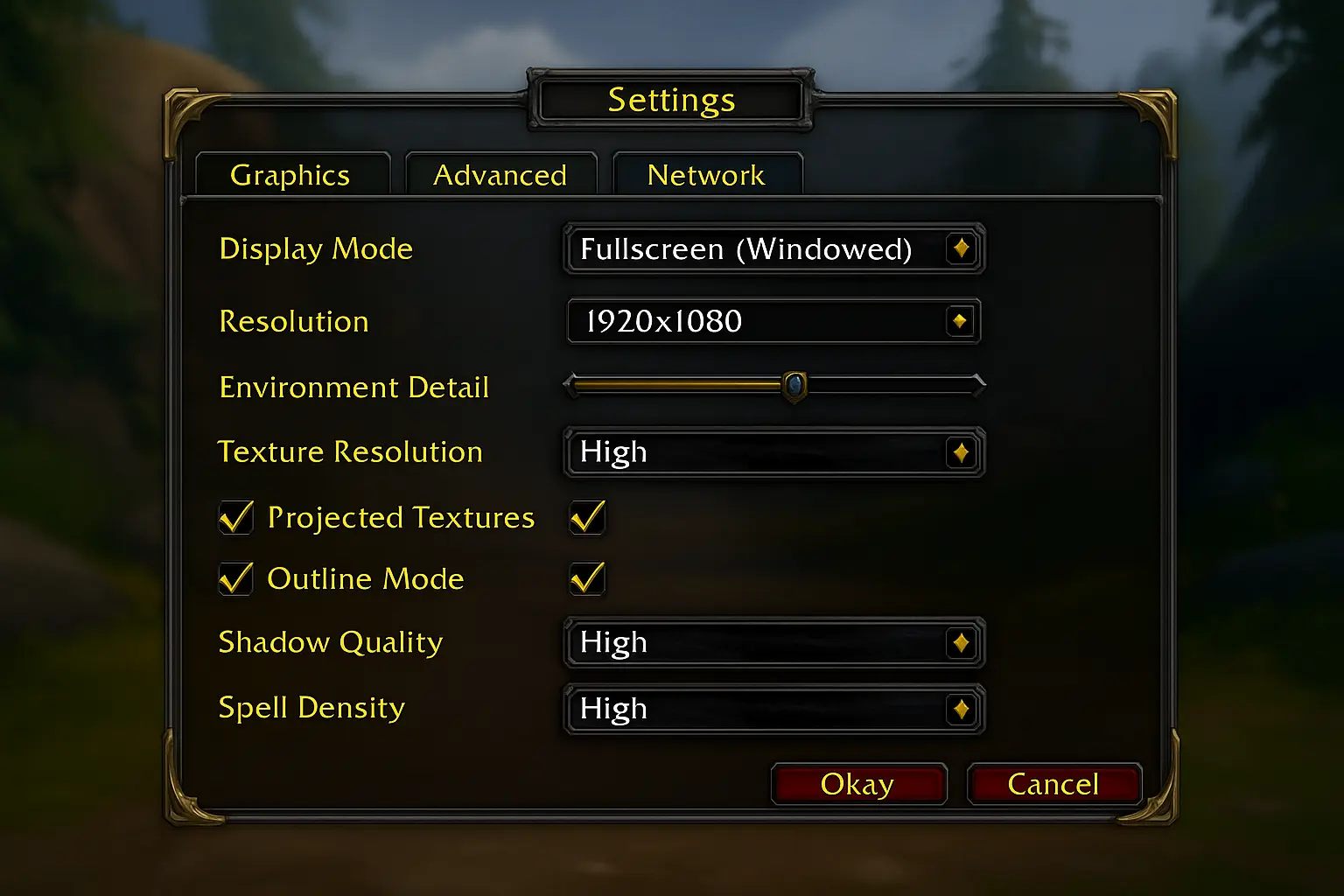
The core factor affecting how smoothly your game runs is the wow graphics configuration. Although World of Warcraft has seen graphical improvements over the years, it still isn’t the most optimized game out there—particularly on older PCs during large PvE or PvP encounters. The following settings strike a balance between performance and visual quality:
These wow graphics settings offer a noticeable FPS boost while maintaining a visually pleasing experience. They may not be suitable for very old systems, as several options are set to “Good” or “High.”
Additional graphics options to consider:
Ensure Render Scale is set to 100% to avoid blurry visuals. You can also try adjusting Resolution if you encounter significant frame drops on your native setting.
Running WoW on outdated hardware can lead to freezes and FPS drops, especially in The War Within expansion. With the game’s ongoing visual updates, system demands have risen too. If upgrading your PC isn't currently an option, these wow graphics settings can help boost performance:
These settings focus on minimizing resource usage while keeping gameplay smooth. While most options are set to “Low,” keeping Outline Mode on “High” improves visibility during encounters.
Other graphics options remain as follows:
Consider disabling Low Latency Mode if your device has a very low refresh rate (e.g., 60Hz). Many users also report higher FPS when using Fullscreen (Windowed) mode, though results vary. For single-monitor setups, Fullscreen is generally more stable. And if you want even more customization and functionality, don’t miss our guide to the best WoW addons in 2025—they’re optimized not to harm performance.
If lowering your wow graphics settings doesn’t help, try optimizing your PC environment. Here are general PC tips to further improve your WoW performance:
| Update Your Drivers | Keeping your graphics card drivers fresh makes a difference in how smoothly WoW TWW runs. Companies like NVIDIA and AMD often release updates that improve performance for newer games. Before you get into The War Within, check twice that your drivers are updated to get the best possible experience. |
| Close Background Programs | Having a bunch of apps or programs running in the background can really bog down your computer and affect how well WoW runs. Try closing anything you do not need, like web browsers, streaming apps, or even antivirus scans. This frees up resources and helps the game run a lot smoother. |
| Adjust the Render Scale | Reducing the render scale in WoW can make a noticeable difference in performance. This setting lowers the internal resolution of the game while keeping the UI crisp. Dropping the render scale to around 70-90% can give you a significant FPS boost without drastically compromising visual quality. |
These tips apply to other modern games too and center around PC optimization rather than in-game configuration. Combining these techniques with solid wow graphics settings ensures smoother and more responsive gameplay.
Addons can greatly enhance your WoW experience, from UI adjustments to advanced combat trackers. However, they can also negatively affect performance. Every addon consumes memory and CPU power, so too many or poorly optimized ones can hurt your FPS—especially during raids or large-scale fights.
Heavy addons like detailed meters or UI overhauls are common culprits for FPS drops. To maintain smooth gameplay, keep your addons updated, disable unnecessary ones, and choose lightweight versions when possible. This balance lets you enjoy the benefits of addons without sacrificing your wow graphics performance.
For players using AMD GPUs, adjusting settings in AMD Software can improve both responsiveness and frame rates.
These tweaks are great for mid-tier PCs and give a noticeable bump in performance without severely impacting the visuals. After updating your AMD settings, consider trying late-game content such as Mythic+—our Mythic+ guide is perfect for putting your wow graphics optimization to the test.
NVIDIA users can similarly benefit from GPU-level tweaks to improve performance and reduce input lag.
These NVIDIA tweaks will allow you to enjoy higher FPS and lower input latency, which is especially helpful during competitive raids or Mythic+ dungeons. Once you’ve optimized your wow graphics with these settings, jump into activities like the Liberation of Undermine raid—our guide will help you navigate the content with precision.
To get the best performance in WoW The War Within, use the following graphics settings for a strong balance between visuals and smooth gameplay: Base Game Quality: 5, Shadow Quality: Good, Liquid Detail: Good, Particle Density: Good, SSAO: Good, Depth Effects: Good, Compute Effects: Good, Outline Mode: High, and Texture Resolution: High.
Reducing visual settings, disabling heavy or unused addons, and updating your graphics drivers can greatly enhance frame rates and reduce lag in demanding areas.
You can cap FPS at 60 by navigating to the in-game System settings under Graphics and adjusting both the Max Foreground FPS and Max Background FPS sliders to 60.
Limiting your maximum FPS helps keep your GPU cooler and can reduce stutters. Setting a cap—like 120 FPS—ensures stable performance without overworking your system.

Buy WoW Gold
Securely get WoW gold, fast delivery in any amount!
That wraps up our wow graphics optimization guide for The War Within. Whether you're running a high-end gaming rig or a modest PC, these tips can help you enjoy a smoother and more immersive experience. We've covered performance-friendly graphics settings for all kinds of systems, tips to improve frame rate through GPU settings, and even how addons can impact your performance. Use this guide to enjoy World of Warcraft at its best.