


+15 More

Digital Aura Portal - FZCO
Building A1, Dubai Digital Park, Dubai Silicon Oasis, Dubai, United Arab Emirates Premises Number 72647 - 001
Business registration number: 70647


gamer-choice.com © 2026
Digital Aura Portal - FZCO
Building A1, Dubai Digital Park, Dubai Silicon Oasis, Dubai, United Arab Emirates Premises Number 72647 - 001
Business registration number: 70647
 February 27, 20269 min ReadElsa
Curious about which addons you should be running in Midnight in 2026? These five are absolute essentials. A couple of them are so feature-packed that they effectively replace dozens of smaller addons, and every single one of them works perfectly fine in Midnight.
Best Midnight Addons to Get in 2026 Quick Summary:
Need some extra gold to kickstart your journey? Buy WoW Gold at Gamer Choice and get any amount quickly and safely. Skip endless gold farming guides and unnecessary addon setups — just get gold directly from other players and jump straight into the content you actually want to play.

Buy WoW Gold
Securely get WoW gold, fast delivery in any amount!

Despite all the improvements and expanded settings options, WoW still isn’t at a point where addons are obsolete. As someone who played during Shadowlands and returned for Midnight, I immediately ran into several frustrating design decisions that needed fixing. Don’t get me wrong — the base UI gives you a solid amount of information. For a relatively new player, it’s more than enough to understand what’s happening in combat.
But the absence of certain basic features — things that almost every other MMORPG includes by default — pushed me toward addons once again.
In this guide, I’m sharing my personal top five addons that I believe every player should install. This isn’t just for newcomers; it’s for anyone who thinks they can get by without addons. I’ll start with the two I actively use every day and then highlight three more that absolutely deserve a spot in your setup. Yes, some features overlap — but the overall comfort and UI clarity you gain are worth it.

Can someone explain why nearly every window in the game — the map, quest log, character sheet, professions, bags — is locked into rigid positions on the screen? If Blizzard is modernizing the UI and introducing quality-of-life improvements, why can’t we freely move these windows?
For example, when adjusting graphics settings, the menu sits right in the middle of the screen. Changes apply instantly, yet you have to close the window to actually preview them properly. It makes no sense.
This was the very first issue I needed to fix, and I found the solution in this massive addon called Enchance QoL.
This addon is absolutely loaded with functionality. I haven’t even scratched the surface of everything it offers, but it’s reassuring to know that whenever something feels off, this addon likely has a solution. Here’s what I personally changed:
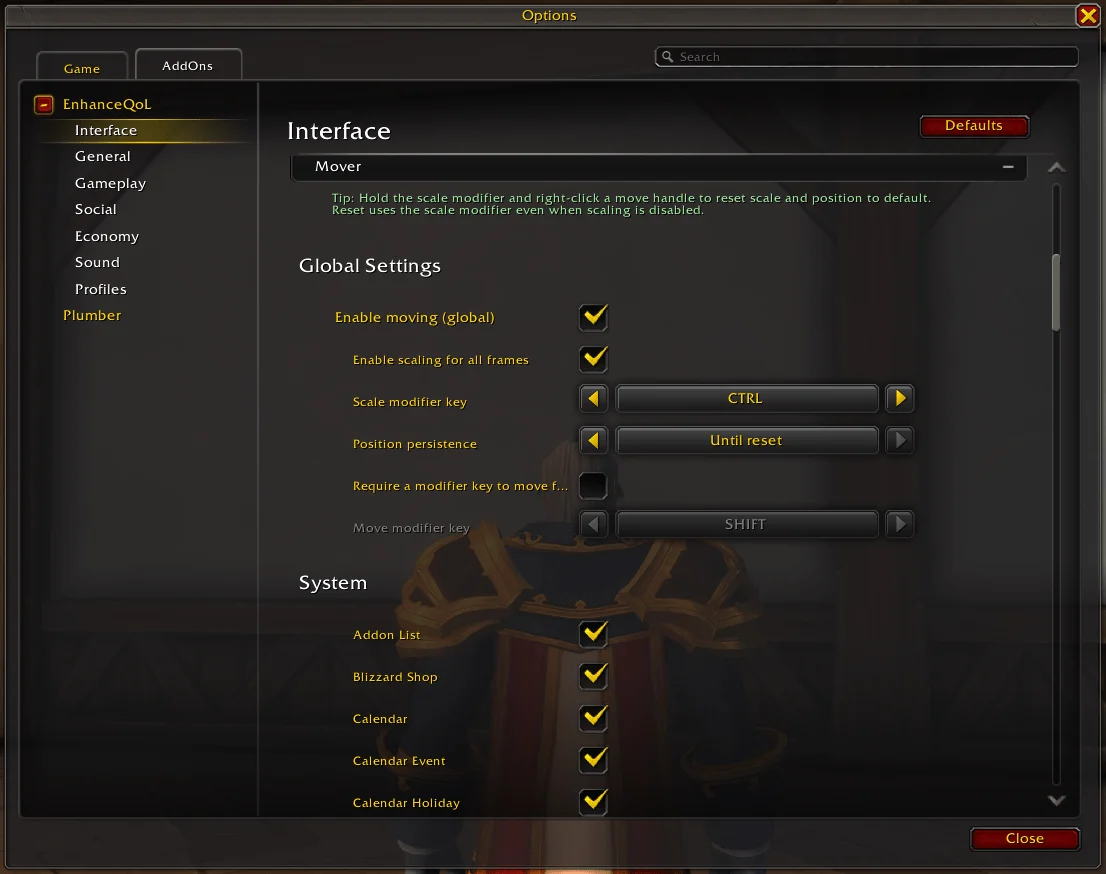
Open the addon settings, navigate to the Interface category, scroll down, and expand the “Mover” section. You’ll find numerous options there. These are the settings I selected and why:
By default, you hold SHIFT to move windows, but I disabled that requirement so I can drag windows freely with my mouse.
Scaling is turned off by default, yet enabling it allows you to resize any window individually. If you’re playing on a large monitor and need better readability, this feature is invaluable. While the game lets you scale text, it doesn’t work consistently. This solves that problem entirely.
All position and scale changes remain saved until you manually reset them. If you prefer temporary adjustments, you can configure it to reset on frame close or logout.
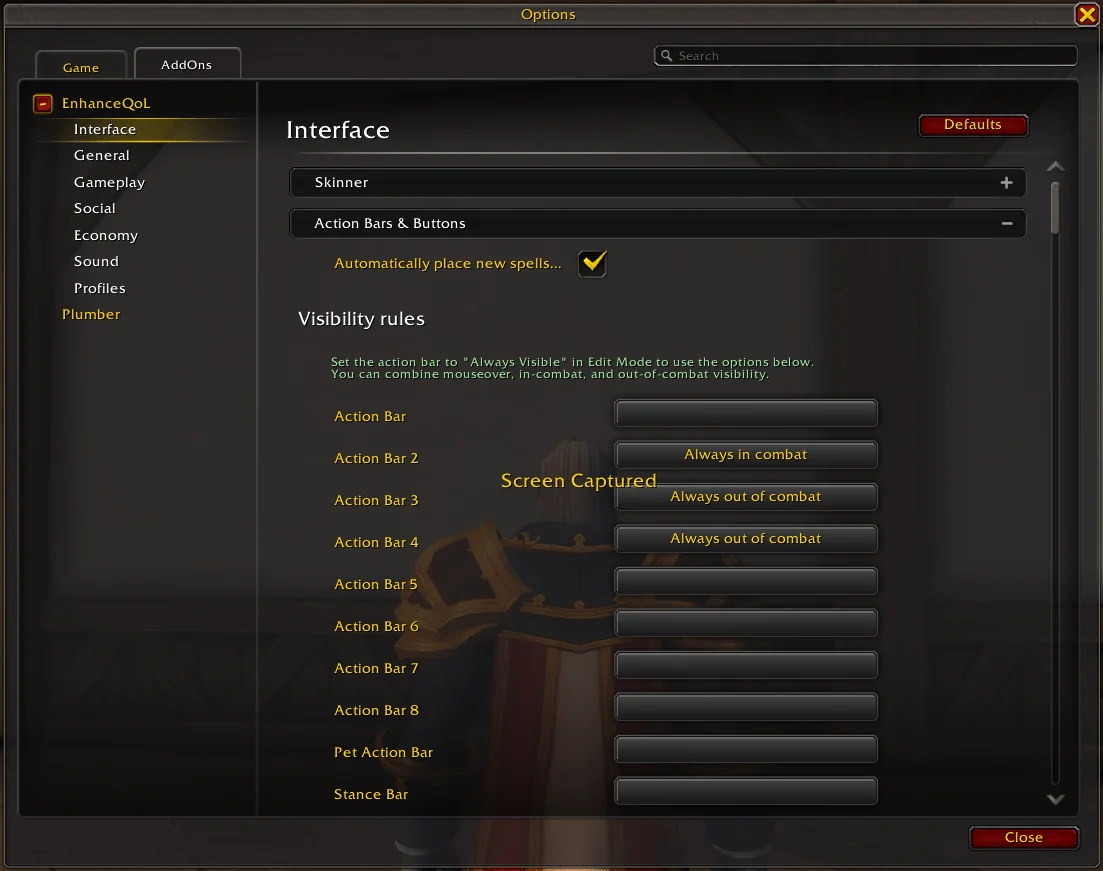
Another major improvement I made was decluttering the HUD. There’s no need to see everything all the time.
For example, I created two custom action bars — one for emotes and light RP/social interactions, and another for utility items like my mount, hearthstone, and the transmog window (another addon feature). I don’t need them visible during combat, so I configured them to hide automatically once combat begins.
Likewise, I set my secondary combat action bar to only appear when I’m actually fighting. When I’m out of combat, it just wastes screen space.
To configure this:
The available conditions are extensive:
I also hid the Micro Menu and bag icon, setting them to appear only on mouseover. This keeps my screen clean while still giving me quick access without memorizing every keybind.
Honestly, I could write an entire standalone guide about Enchance QoL. There are hundreds — maybe thousands — of tweaks available. Below are just some of the standout features you can experiment with:
| Feature | What it does | Why use |
|---|---|---|
| Teleport Compendium panel | Let's you pick teleports directly from the world map | Huge time saver, replaces hunting toys, hearths, and teleports |
| Health potion macro | One button emergency heal that auto updates to your current potion or healthstone | Zero upkeep, saves keybinds, avoids broken icons when bags are empty |
| Out of combat Recuperate swap | Option to use Recuperate outside combat instead of a potion | Keeps the same keybind useful and reduces button bloat |
| Custom cooldown panels | Tracks spells and items that the default cooldown manager does not | Great for potions, trinkets, racials, and niche cooldowns |
| Minimal quest tracker minimization | Makes the minimized quest tracker actually minimal | Cleans the screen without losing quest awareness |
| Action bar fading and cleanup | Fades action bars and supports a minimalist leveling UI | Replaces separate HUD tweak addons with less setup |
| Built in popular WeakAura style utilities | Includes things like mouse ring, hold to release, and keystone helper style functions | Adds common QoL staples without extra addons |
| One addon replacing several others | Can cover automations, selling items, and UI tweaks depending on settings | Fewer addons to manage, fewer conflicts, faster setup |
There’s simply too much to list here. This addon alone is transformative and absolutely mandatory, even for new players.
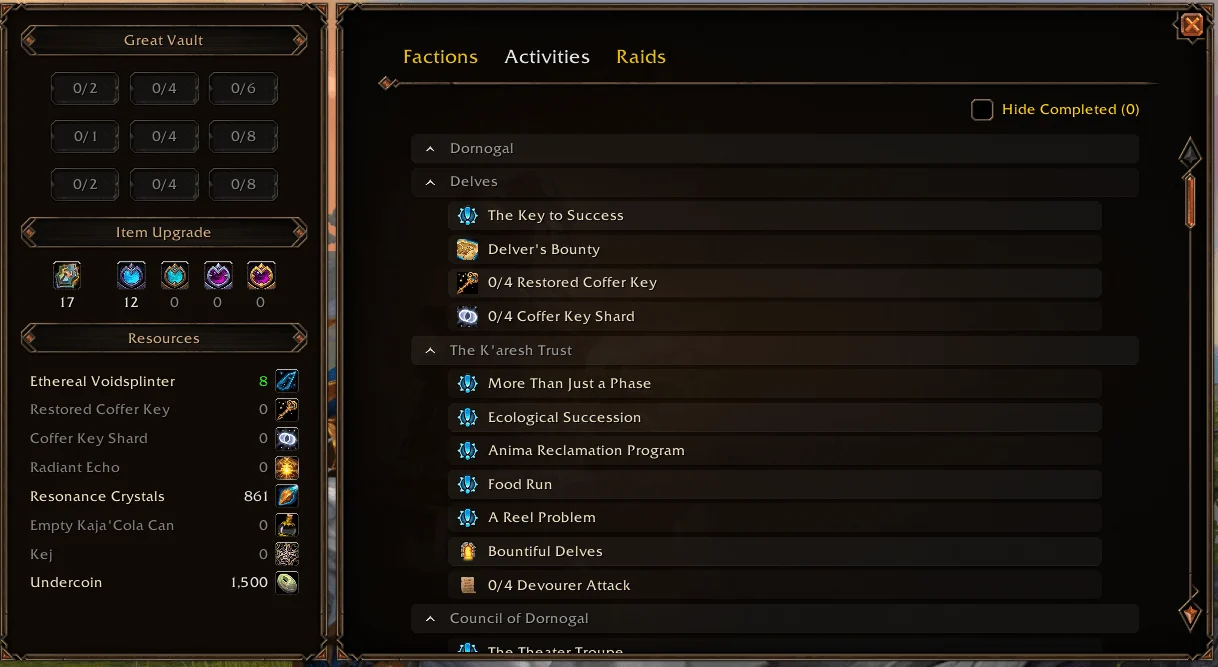
Plumber doesn’t reinvent the wheel — instead, it refines it. It smooths out small UI inconsistencies and improves functionality in ways that feel completely natural. Many of its additions look like they were built into the game from the start.
Here’s what I’ve enabled:
Instead of dragging every transmog set to your action bars, Plumber adds a macro-style quick access button that opens your full outfit list instantly.
Even with fewer than ten transmog sets, I find this extremely convenient. Enable it under Collections by ticking “Outfit Collection: Quick Access.” Next time you visit the Transmogifier, drag the button from above the outfit list onto your action bar.
The default loot window works — but Plumber’s version consolidates everything into a single clean frame and adds a “Take All” keybind. It’s faster, cleaner, and feels modern.
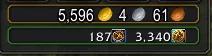
This is especially useful. You can pin collectible currencies directly to your backpack’s currency line next to your gold.
I track Twilight’s Blade Insignia and Trader’s Tenders this way so I never need to open my character panel. Simply left-click a currency and select “Show on Backpack.”
This feature is a lifesaver for returning players. It provides a central hub where you can:
Enable it in settings, then click the small icon beneath the calendar in the top-right corner. You can even assign a keybind. And yes — you can move the window freely with Enchance QoL.

Buy WoW Boost
Get Raid Carries, Mythic+ Runs & Leveling Services!
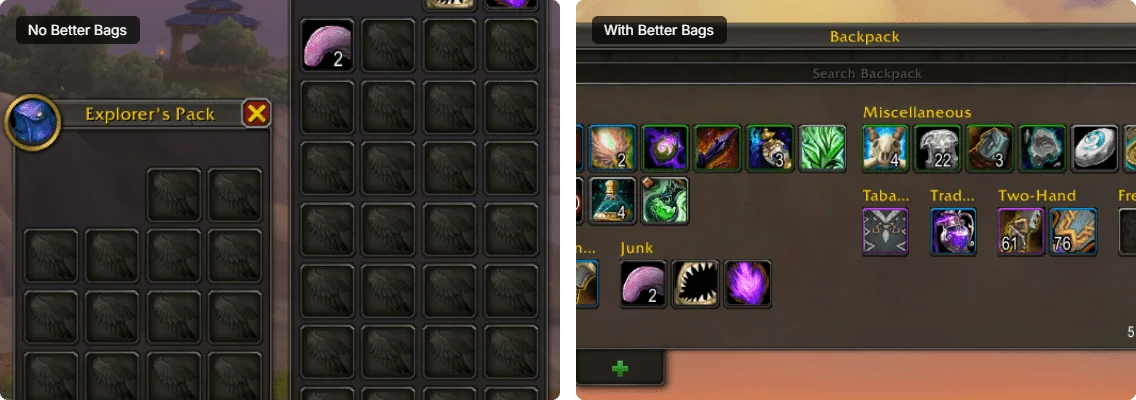
I genuinely don’t understand why WoW still relies on separate bags when most MMORPGs offer unified inventories.
Customizing bag slots is nice in theory, but in practice, searching through multiple fragmented windows is frustrating. The built-in filters per bag are a step forward, yet they don’t fully solve the clutter issue.
Better Bags merges everything into one streamlined inventory and categorizes items intelligently. It’s cleaner, faster, and infinitely more comfortable to use.
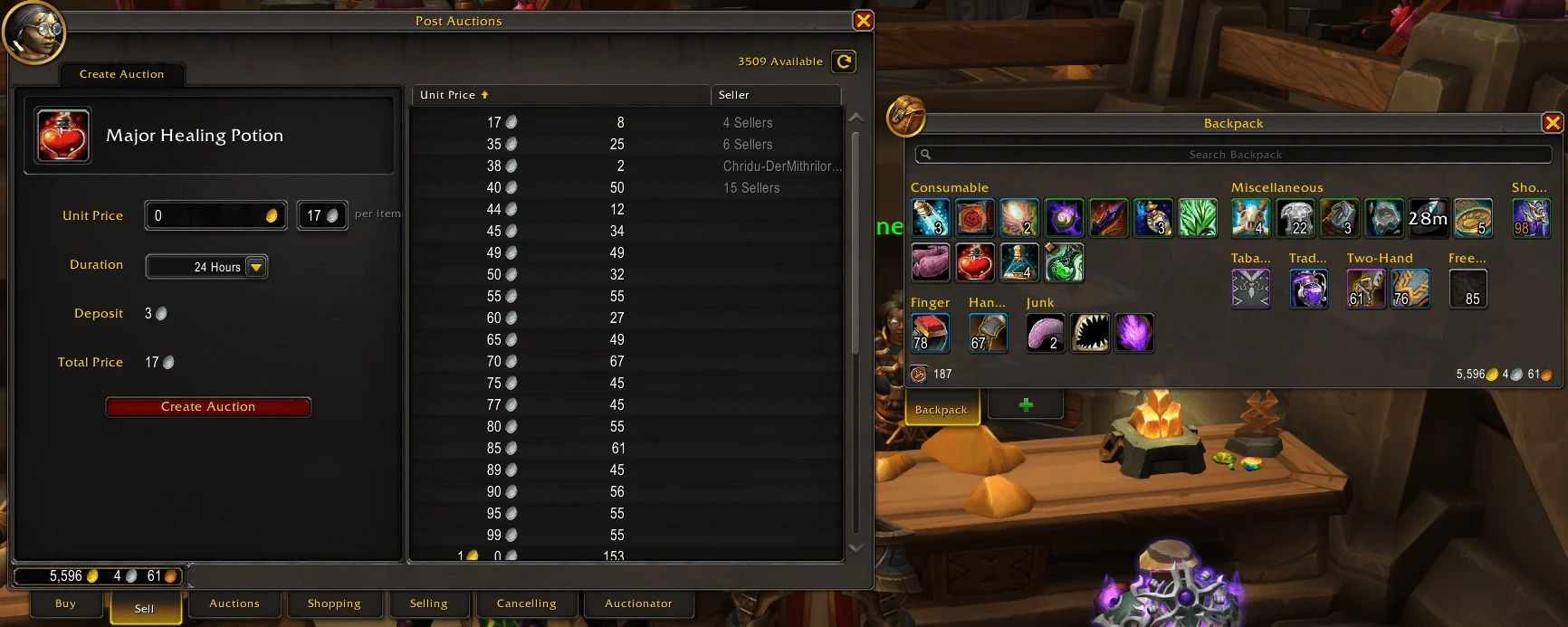
If you use the Auction House at all, you should be running Auctionator.
Auctionator simplifies everything. It replaces the clunky default interface with a streamlined, efficient UI that makes buying and selling painless. It also helps protect you from costly mistakes like listing valuable items for absurdly low prices.
It integrates auction and vendor pricing directly into item tooltips and relies on full scans to keep data updated.
While the interface changes significantly, it still feels native to WoW. New players might not even realize it’s addon-powered.
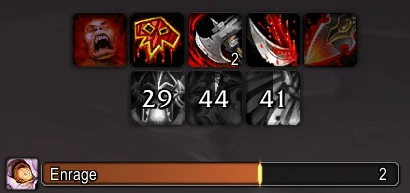
Cooldown Manager is widely used, but its default layout doesn’t center cooldown rows when adjusting column counts.
This addon fixes that one visual annoyance without overhauling the system. When you reduce horizontal columns, the new row automatically centers instead of aligning awkwardly to one side.
It’s a minor fix — but it makes the UI look far more polished. Blizzard clearly invested effort into the cooldown system, so it’s surprising this detail was overlooked. Thankfully, this addon resolves it effortlessly.
Installing addons is straightforward. Download the addon, extract its folder, and place it inside your _retail_/Interface/Addons directory. After launching the game, open the AddOns menu from the character selection screen or in-game settings and ensure the addon is enabled.
While a few older and well-known addons are no longer maintained, many updated alternatives are fully compatible with Midnight. These addons provide extensive customization options and new features that significantly improve gameplay and the user interface.
By using the Enchance QoL addon, you can activate built-in moving and scaling tools that let you freely reposition and resize windows such as the map, character panel, professions tab, and more.
The default HUD editor allows you to hide certain interface elements, but additional addons expand these capabilities even further. With the right addon, you can conditionally hide action bars, menus, and other UI components for a cleaner and more dynamic layout.
Installing the Better Bags addon replaces the traditional multi-bag layout with a single, unified inventory window where items are automatically sorted into logical categories for easier navigation.