


+15 More

Digital Aura Portal - FZCO
Building A1, Dubai Digital Park, Dubai Silicon Oasis, Dubai, United Arab Emirates Premises Number 72647 - 001
Business registration number: 70647


gamer-choice.com © 2026
Digital Aura Portal - FZCO
Building A1, Dubai Digital Park, Dubai Silicon Oasis, Dubai, United Arab Emirates Premises Number 72647 - 001
Business registration number: 70647
 June 12, 20256 min ReadElsa
When playing Escape From Tarkov, you can’t afford to leave anything to chance. That’s exactly why so much time is spent in pre-raid preparation—organizing your stash, equipping your gear, and fine-tuning your loadout. In this guide, we’ll go over the best Tarkov settings that will not only boost your FPS but also provide a competitive advantage during raids. There’s nothing more frustrating than dying due to FPS drops or sudden lag. So, we’ll dive into the in-game graphics settings and other tips to help you increase your FPS while playing Tarkov.
Sure, dying and losing gear is part of the game’s charm. But it becomes a lot less painful when you have enough roubles to replace everything quickly and jump right back into the action. Making roubles—the core currency in EFT—doesn’t have to be a grind through scav runs. You can buy Escape From Tarkov Roubles at Gamer Choice. It’s the fastest and safest way to get your hands on in-game currency. Simply choose how many millions you want, and the roubles will be delivered in under an hour. Fast, secure, and reliable—Gamer Choice is the go-to solution!

Buy EFT Roubles
Stock up on EFT roubles and gear up now!


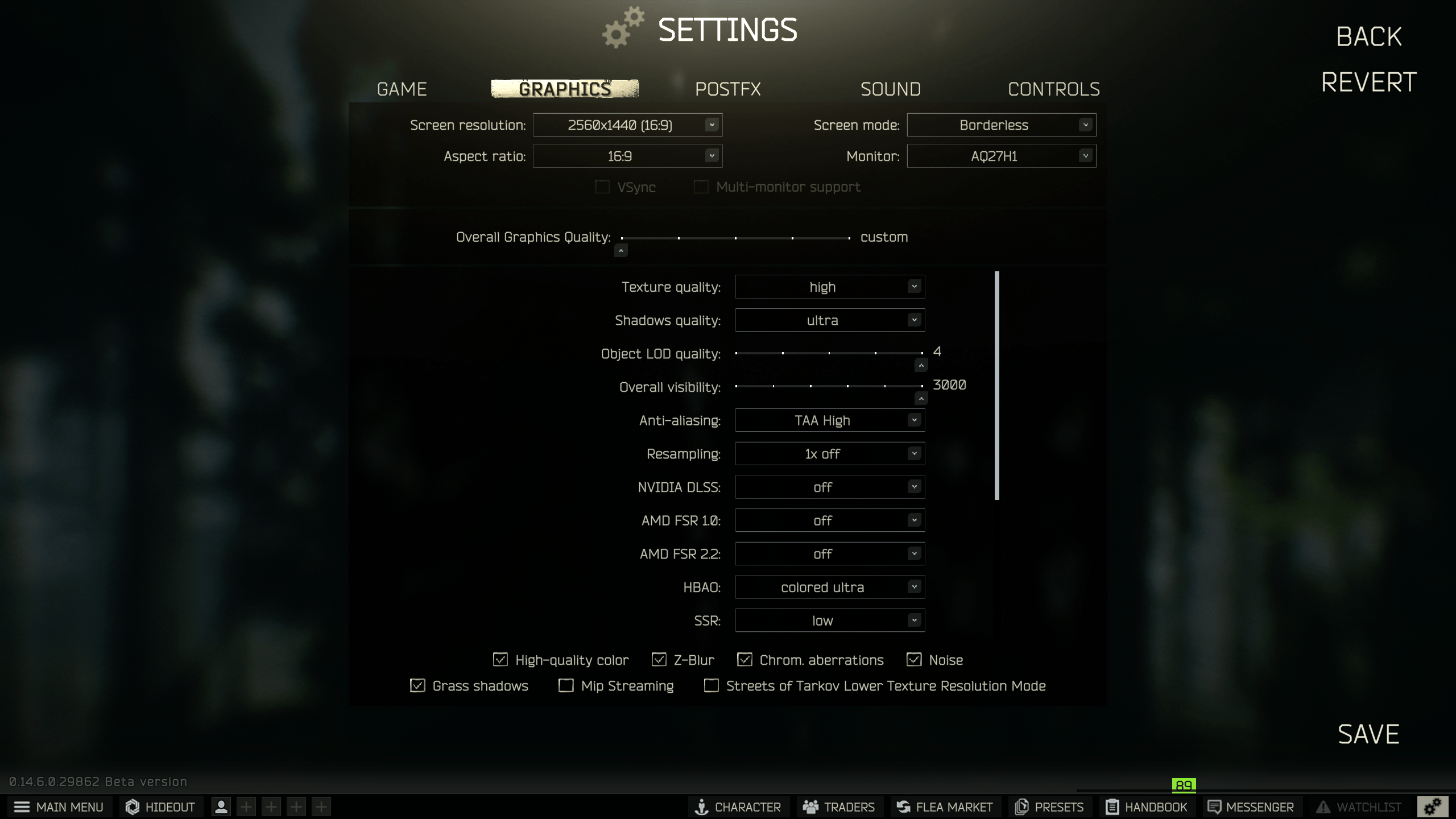
Finding the best balance between high FPS and decent visuals is key. Tarkov runs on the Unity engine, which is quite resource-intensive, and wrong settings can lead to poor performance. Here’s how to configure the display settings for optimal gameplay:

In the Presets section, you can select predefined combinations of settings to quickly adjust graphical quality. Start with a preset, then tweak individual settings for the best Tarkov settings that fit your system.
Binaural audio: Off – Previously optional, now removed as of patch 0.16. This setting caused CPU overloads and FPS drops. The new sound system now dynamically adjusts audio based on verticality and movement, enhancing spatial awareness.
The updated sound engine considers movement speed and elevation, improving directional audio. While great for immersion, it may slightly tax lower-end CPUs. Minimize background apps to reduce stutters.
Includes bolt sway, camera shake, and improved recoil animations. These add immersion but can reduce FPS on weaker systems. Reducing Object LOD and Shadows Quality can help compensate.
Maps like Factory and Woods now include snow, reworked textures, and ambient sounds. Snow and fog can reduce visibility. Adjust Brightness and Clarity in Post FX settings accordingly.
Interactive extraction points now exist but may increase object rendering demand. Use mid-range LOD settings for balance.
Recommended for PCs with under 4GB VRAM. Adjust buffer to Low. If you have more VRAM, keep Mip Streaming off for sharper textures.
Smoother camera recoil and bounce across weapons enhance full-auto play. Minor performance impact but better control during fights.
These new features increase CPU/GPU load slightly. Set Object LOD Quality to mid for a good balance between visuals and performance.

Post FX settings affect only the visual style, not FPS. Still, tweaking them can help you see better in dark or foggy areas. Here are some options to explore:
Post FX is great for visibility enhancements during bad weather or dark raids, like in Interchange or Woods. While these don’t count toward the best Tarkov settings for FPS, they can still provide a tactical advantage.
The best graphics settings are those tailored to your specific PC setup to ensure optimal performance and stability during raids.
Set Shadows to Low, disable HBAO, run the game at your monitor’s native resolution, and enable NVIDIA Reflex if supported by your GPU.
Escape from Tarkov isn’t widely regarded as well-optimized. However, recent engine updates and visual improvements have enhanced performance across many systems.
The average FPS generally falls between 60 and 90, with most players experiencing around 80 FPS depending on their system specifications.
60 FPS is the absolute minimum for smooth gameplay. Dropping below that threshold can significantly reduce your ability to react effectively in combat.

Buy EFT Boost
Get EFT boosts now! Dominate raids and farm gear!
To wrap it all up, if your goal is to improve FPS and make your raids smoother, follow the best Tarkov settings guide by disabling unnecessary effects like Depth of Field, unnecessary scaling, and texture-heavy options. Keep anti-aliasing and texture quality as high as possible without sacrificing too many frames.
Always maintain at least 60 FPS—anything less and your reaction time will suffer. Advanced users can tweak additional options via their GPU drivers, but proceed with caution. Keeping drivers up-to-date (including Windows and chipset drivers) and installing Tarkov on an SSD can dramatically improve load times and stability.
This guide should help you optimize the game to your PC’s capabilities, making Escape from Tarkov not only more playable but also more enjoyable. Don’t forget, losing gear is inevitable—but dying to poor performance doesn’t have to be.