


+15 More

Digital Aura Portal - FZCO
Building A1, Dubai Digital Park, Dubai Silicon Oasis, Dubai, United Arab Emirates Premises Number 72647 - 001
Business registration number: 70647


gamer-choice.com © 2026
Digital Aura Portal - FZCO
Building A1, Dubai Digital Park, Dubai Silicon Oasis, Dubai, United Arab Emirates Premises Number 72647 - 001
Business registration number: 70647
 June 19, 20259 min ReadElsa
In the fast-paced world of tactical shooters, achieving peak performance is crucial, and it all begins with the Valorant best settings you can customize to your preferences in the game menu. Whether you're a veteran or just starting out in Valorant, refining your FPS, video, mouse, and audio settings can dramatically improve your gameplay.
This comprehensive guide will walk you through the key details of the Valorant best settings, helping you unlock your PC's full potential. From boosting frames per second for smoother action to finding the ideal video configuration for optimal clarity, we’ve got you covered. We’ll also explore mouse setup to enhance precision, delve into audio settings to catch every movement, and much more.
If you're looking for a split-second advantage in gunfights or aiming to create a better immersive experience, this guide offers all the insight and practical tips you need to fine-tune the Valorant best settings for 2026. Let’s get started!
Before we get into performance tuning and configurations, check out the best deal currently available on our website. At Gamer Choice, you can buy Valorant Rank Boost at unbeatable prices with the fastest turnaround. Let our PROs handle the grind so you can enjoy climbing the competitive ladder stress-free. We’re here to guarantee your next rank up!

Buy Valorant Boost
Climb the Valorant ranks fast with our pros!

In a competitive game like Valorant, video settings play a crucial role in your overall performance. Optimizing your visual settings can dramatically affect your ability to spot enemies and react swiftly in any scenario.
This section breaks down the Valorant best settings for video, allowing you to boost visibility and performance simultaneously. Whether you're chasing crisp visuals or need maximum FPS, understanding your settings is the first step.
From resolution and aspect ratio to brightness and contrast, every detail matters. We’ll show you how to balance graphics fidelity and performance so that you can get the edge you need on the battlefield.
Here are the optimal settings for competitive play in Valorant:
Graphics quality heavily influences game visibility. These configurations are designed to strike the ideal balance between performance and clarity. High-end PC users have more flexibility, but even then, it’s smart to start on max settings and lower selectively until FPS stabilizes.
Check out these commonly recommended graphics settings used by many players:
The Stats tab doesn’t impact performance much, but some options can be informative:
With these pro settings and experimentation, you’ll be able to increase FPS and sharpen your overall experience. Every rig is unique—test what works best for yours.
In competitive matches, the Valorant best settings for FPS are crucial. A stable, high frame rate improves visual smoothness and reaction time. Poor FPS can make gameplay choppy and unresponsive, creating a major disadvantage.
Optimizing your FPS doesn’t just improve visuals—it also enhances control precision and responsiveness. Better frame rates lead to better accuracy, faster decisions, and superior overall performance. Whether you’re casual or competitive, tuning FPS is essential for consistent gameplay.
For lower-end systems, your best option is to reduce all graphics settings to their lowest:
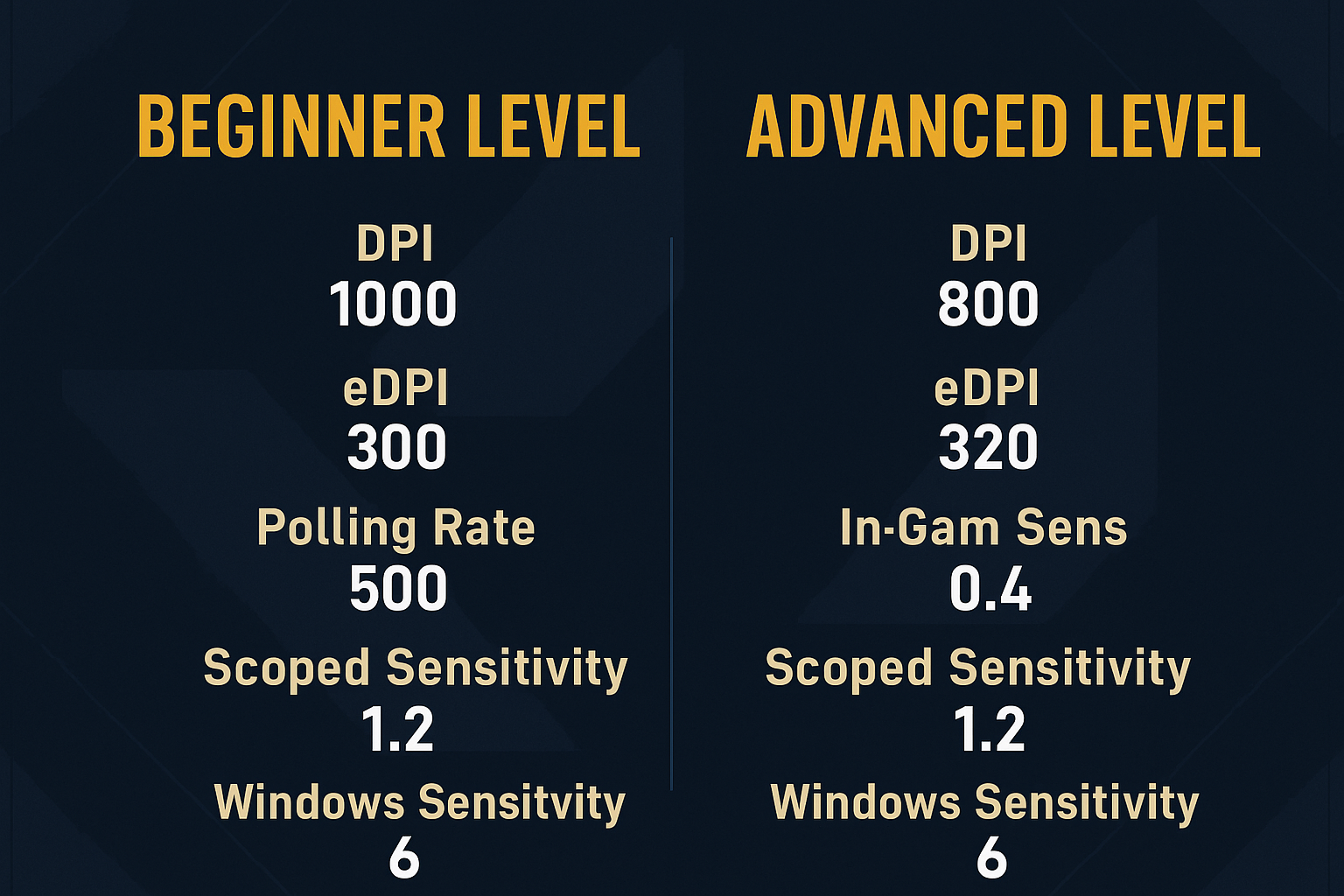
When exploring the Valorant best settings for mouse configuration, you're diving into one of the most personal aspects of gameplay. Mouse sensitivity, DPI, and related settings should feel natural to your unique playstyle and hardware setup.
Finding your balance between fast flicks and steady aim depends entirely on trial and error. Some players thrive with high sensitivity, while others demand more control via lower settings. The key is customizing these settings to fit your rhythm.
This journey toward the Valorant best settings for aiming can dramatically impact your performance, so don’t be afraid to try different setups until it feels right. Here are a few popular configurations you can test:
| Beginner Level | DPI: 1000 eDPI: 300 Polling Rate: 500 In-game Sensitivity: 1.4 Scoped Sensitivity: 1.2 Windows Sensitivity: 6 |
| Advanced Level | DPI: 800 eDPI: 320 Polling Rate: 1000 In-game Sensitivity: 0.4 Scoped Sensitivity: 1.2 Windows Sensitivity: 6 |
Ultimately, your best mouse setup comes down to practice and experimentation with both in-game options and your hardware.
The Valorant best settings for audio can provide a real tactical advantage. While personal preference matters, tuning your sound options can help pinpoint enemy movements and heighten immersion.
Here are essential tips for optimal audio performance:
Take time to experiment with your EQ, volume balance, and headset quality—sound plays a bigger role in Valorant than many players realize.
In a game where spatial awareness is vital, the Valorant best settings for your minimap can enhance your decision-making. Proper configuration allows you to quickly assess enemy and team positions.
The optimal minimap setup for clarity and awareness:
Improving FPS is one of the fastest ways to optimize your Valorant experience. Start by tweaking in-game graphics settings, lowering effects, and even reducing resolution if needed. Update your GPU drivers regularly to stay on top of performance updates.
Close unnecessary apps to free up resources, and switch your system’s power plan to "High Performance." Advanced users can try overclocking (safely) for additional gains. Also, keep your OS and Valorant client updated—many patches include FPS boosts.
Maintaining clean hardware is just as important. Preventing overheating with regular cleaning and ventilation will keep your rig stable during intense matches.
Combined, these strategies ensure a consistently smooth gameplay experience, a core component of the Valorant best settings.
One of Valorant’s strengths is how accessible it is. Even modest systems can run the game well, thanks to low requirements. Below is a look at what specs are recommended:
| Minimum Requirements (30 FPS) | CPU: Intel Core 2 Duo E8400 / AMD Athlon 200GE GPU: Intel HD 4000 / AMD Radeon R5 200 RAM: 4 GB OS: Windows 10 (Build 17134+) 64-bit Windows 11 64-bit |
| Maximum Requirements (60 FPS) | CPU: Intel i3-4150 / AMD Ryzen 3 1200 GPU: GeForce GT 730 / AMD Radeon R7 240 RAM: 4 GB OS: Windows 10 (Build 17134+) 64-bit Windows 11 64-bit |
Valorant is built to be accessible, with low system requirements that allow it to run smoothly on most modern PCs, even those without high-end components.
Yes, Valorant is exclusively available for PC and runs on Windows, offering a competitive FPS experience tailored for desktop users.
To boost FPS, lower graphics settings, update GPU drivers, shut down background apps, use high-performance power plans, and consider safe overclocking. Keeping your system cool and updated also helps maintain higher frame rates.
Increase FPS by adjusting in-game graphics to lower values, updating drivers, minimizing system load by closing other applications, and enabling performance-optimized power settings.
60 FPS is playable, but many players prefer 144 FPS or higher for smoother gameplay and more responsive input, especially in competitive matches.
Pros typically use low sensitivity for accuracy, minimal graphics settings to reduce distractions, and optimized audio to hear footsteps and other key in-game sounds clearly.
While sensitivity is personal, a common average is around 0.95. This level offers a balance between fast turns and precise control, though preferences may vary.
Use Multithreaded Rendering: On, Material Quality: Medium, Texture Quality: Medium, Detail Quality: Low, UI Quality: Low, with all post-processing effects off for maximum performance and clarity.
Pro players usually select lower graphics settings to maintain high FPS and ensure visual clarity, eliminating unnecessary visual effects that could hinder focus or reduce responsiveness.
Achieve peak performance by maximizing FPS, using clear video settings, personalizing your mouse sensitivity, and enabling key audio features for spatial awareness.
Anything above 60 FPS is acceptable, but for smoother competitive gameplay, many aim for 144 FPS or higher to gain a responsiveness advantage.
Lag in Valorant is often due to network issues such as poor internet stability or high ping, affecting how quickly your actions are registered in-game.

Buy Valorant Accounts
Get Valorant accounts: ranked, fresh, smurfs!
In summary, optimizing your Valorant best settings—including FPS, video, mouse, and audio—plays a critical role in performance and immersion. Each tweak improves your connection with the game, from better visuals to more responsive controls and clearer audio cues.
Remember that the best setup is the one that fits your personal style. Experiment with what works for you, test regularly, and don’t hesitate to adjust until your performance peaks. Whether your goal is rank climbing or just smoother matches, tuning your settings will help you reach your goals.
With Gamer Choice ready to support your competitive journey, there’s never been a better time to level up your settings and dominate the Valorant arena!