


+15 More

Digital Aura Portal - FZCO
Building A1, Dubai Digital Park, Dubai Silicon Oasis, Dubai, United Arab Emirates Premises Number 72647 - 001
Business registration number: 70647


gamer-choice.com © 2026
Digital Aura Portal - FZCO
Building A1, Dubai Digital Park, Dubai Silicon Oasis, Dubai, United Arab Emirates Premises Number 72647 - 001
Business registration number: 70647
 May 29, 202510 min ReadElsa
Hello, CoD fans! Today, we’re bringing you the ultimate guide to finding the best controller settings in Black Ops 6. Whether you're new to the game or a seasoned player, knowing how to fine-tune your controls can give you a noticeable edge. Recent Call of Duty titles have introduced a wide array of gamepad customization features, giving you the flexibility to adjust everything to your liking. However, the number of settings can feel daunting, especially for newcomers.
With this guide, you’ll be able to navigate the settings with confidence, test different configurations, and decide what works best for your playstyle. If you still find yourself struggling after experimenting, you can always use the Black Ops 6 account leveling service from Gamer Choice to unlock more weapons and attachments. This can help you build your ideal loadout and make matches a lot more enjoyable.

Buy CoD Boost
Get CoD boosts today and crush every match!

We begin with the Inputs tab, the first section under the Black Ops 6 controller settings. This section covers general control preferences. Below is the recommended input configuration:
| Setting | Recommended Option | Explanation |
|---|---|---|
| Aiming Input Device | Controller | To optimize for console gameplay, focusing on controller-specific settings. |
| Button Layout Preset | Tactical | Swaps crouch and melee to allow quicker crouch/slide without removing thumb from aiming stick. |
| Horizontal Stick Sensitivity | 6 | Balances speed and precision for general movements and aiming. |
| Vertical Stick Sensitivity | 6 | Keeps vertical movements consistent with horizontal sensitivity. |
| Simplified Controls Preset | Off | Full control customization is maintained for flexibility. |
| Bumper Ping | Off | Reduces accidental pings that could alert enemies. |
| Flip L1/R1 with L2/R2 | On | Shorter buttons for aiming and shooting, reducing response time and increasing firing speed. |
| Stick Layout Preset | Default | Keeps standard stick behavior, optimal for aiming and moving intuitively. |
| Controller Vibration | Off | Minimizes distractions and improves aiming stability. |
| Trigger Effect | Off | Prevents additional resistance, allowing smoother aim and faster shooting. |
Choosing the Tactical Button Layout Preset is highly beneficial, as it switches the crouch and melee buttons, allowing for smoother sliding and crouching actions without lifting your thumb off the aim stick. It’s widely regarded as one of the best controller settings in Black Ops 6. For users on standard controllers, this is especially helpful, while those with controllers featuring back paddles may still find this layout advantageous.
Switching L1/R1 with L2/R2 can also speed up your reaction times by using the quicker bumpers instead of triggers. Disabling Trigger Effects and Controller Vibration eliminates distractions and resistance, helping you focus entirely on the action.
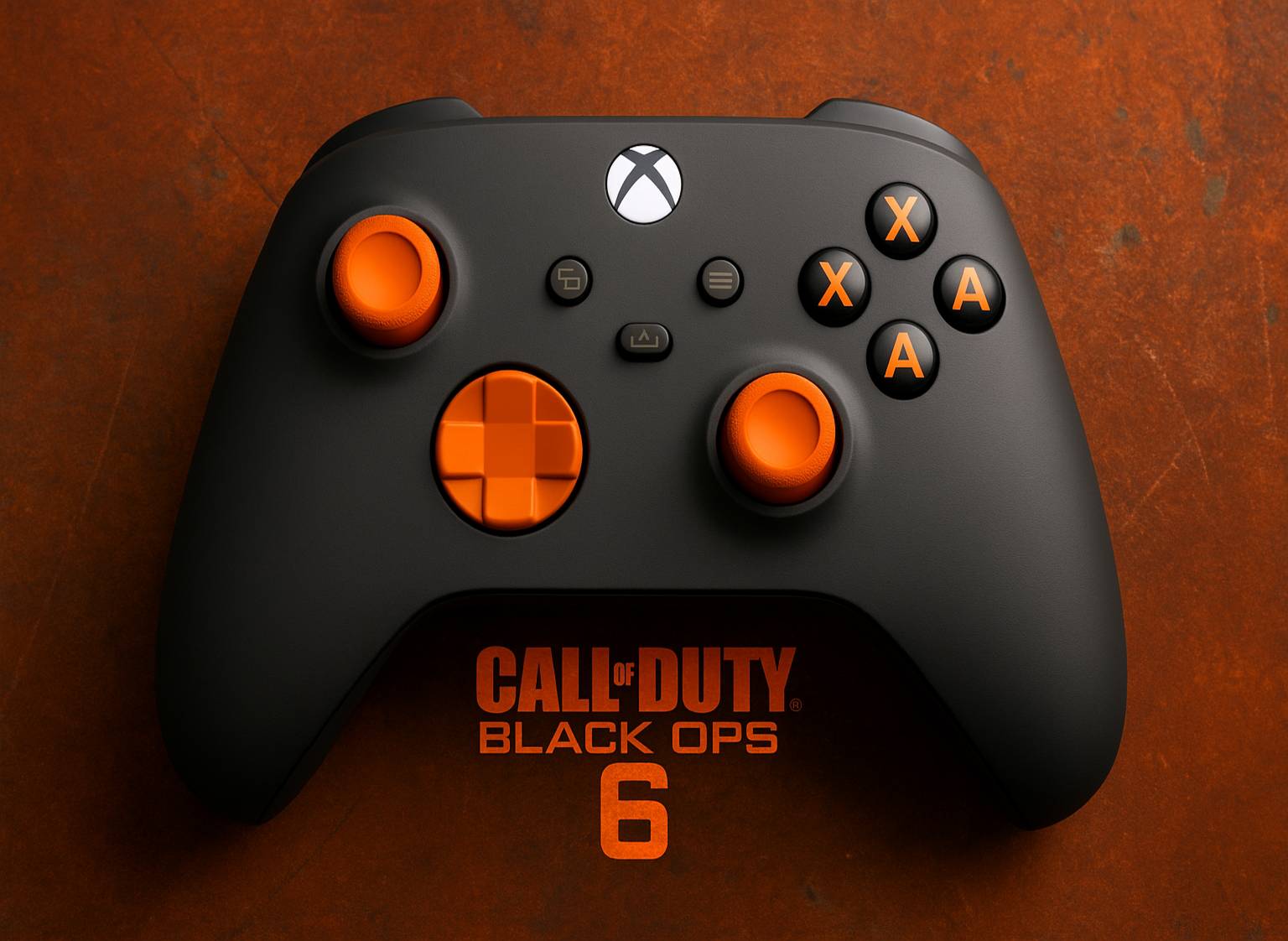
One of the core components of the best controller settings in Black Ops 6 is sensitivity. It directly affects your accuracy and ability to track enemies. While sensitivity is largely subjective, starting with the default options and adjusting gradually is a great way to find your comfort zone.
| Setting | Recommended Option | Explanation |
|---|---|---|
| Horizontal & Vertical Stick Sensitivity | 6 | Ensures precise aiming while maintaining control during fast-paced gameplay. |
| Third-Person Sensitivity Multiplier | 1.00 | Keeps consistency across views, particularly helpful when switching perspectives. |
| Ground Vehicles Sensitivity Multiplier | 1.00 | Avoids erratic vehicle controls, keeping movements smooth and predictable. |
| Air Killstreak Sensitivity Multiplier | 1.00 | Provides stable, controlled movements during aerial killstreaks. |
| Tablet Sensitivity Multiplier | 1.00 | Maintains uniform sensitivity for tablet interactions. |
| ADS Sensitivity Multiplier (Focus) | 1.00 | Balances speed and accuracy when aiming down sights in focus mode. |
We recommend beginning with a sensitivity level around 6 for both horizontal and vertical movements. Lower sensitivity levels allow for more precise aiming, while higher ones facilitate quicker turns. Experiment within this range to discover what works best for you.
Dead Zones help eliminate stick drift and fine-tune how your analog sticks respond. This is especially helpful if you’re using an older controller that may have slight hardware wear. Here’s what we recommend:
| Setting | Recommended Option | Explanation |
|---|---|---|
| Left Stick Min | 0 | Eliminates lag in movement control without registering unnecessary drift. |
| Left Stick Max | 0.99 | Prevents oversensitivity in extreme movement directions, ideal for maintaining smooth control. |
| Right Stick Min | 0 | Optimizes aiming by setting it to react to the smallest adjustments. |
| Right Stick Max | 0.99 | Ensures control without causing drift during high-sensitivity situations. |
| Left Trigger | 0 | Provides instant response for aiming or shooting when trigger is pressed. |
| Right Trigger | 0 | Mirrors left trigger settings for fast shooting and response. |
Keep the Dead Zones at the lowest possible values where you don’t notice any drift. This ensures that your inputs are as responsive as possible without creating issues with unintended movements.
The Aiming section lets you refine how your controller feels while engaging in combat. These tweaks are crucial for improving your overall shooting experience.
| Setting | Recommended Option | Explanation |
|---|---|---|
| Third-Person Sensitivity Multiplier | 1.00 | Maintains the same control in third-person views as in first-person. |
| Ground Vehicles Sensitivity Multiplier | 1.00 | Standardizes sensitivity across all movement forms.Standardizes sensitivity across all movement forms. |
| Air Killstreak Sensitivity Multiplier | 1.00 | Stabilizes aiming for aerial killstreaks, allowing smoother tracking. |
| Tablet Sensitivity Multiplier | 1.00 | Keeps interactions consistent across all tablet-related actions. |
| ADS Sensitivity Multiplier (Focus) | 0.90 | Slows down aiming sensitivity slightly to provide more control during focused aiming. |
| ADS Sensitivity Transition Timing | Instant | Prevents delays when switching between hip-fire and ADS, improving response speed. |
| Aim Response Curve Type | Dynamic | Allows for smoother tracking of moving targets, improving precision. |
| Custom Sensitivity Per Zoom | Off | Keeps aiming sensitivity uniform across different zoom levels for consistency. |
Choosing the Dynamic Aim Response Curve Type gives you smoother target tracking. Setting ADS Sensitivity Transition Timing to Instant improves responsiveness when switching from hip-fire to aiming down sights. With an ADS sensitivity of 0.90, you'll achieve better control during close-quarter encounters.
While sensitivity and aiming adjustments might seem interchangeable, they serve distinct purposes in shaping your gameplay experience in Black Ops 6.
Together, these elements are key to building the best controller settings in Black Ops 6 that feel intuitive and efficient for your playstyle.
One of the biggest strengths of using a gamepad is Aim Assist, particularly in Black Ops 6 where quick reflexes are everything. Aim Assist is especially powerful in the PC version when playing with a controller.
| Setting | Recommended Option | Explanation |
|---|---|---|
| Target Aim Assist | On | Essential for controller players to help track targets effectively during fast movements. |
| ADS Sensitivity Multiplier | 1.00 | Ensures ADS sensitivity remains consistent with general sensitivity for a balanced feel. |
For this reason, enabling Aim Assist is strongly recommended. While some players like to increase its intensity, the default option provides a balanced experience. Feel free to adjust this setting based on how much assistance you prefer.
The new Omnimovement system in Black Ops 6 makes the Movement settings more important than ever before. These control how your character moves and how certain mechanics behave during gameplay. Here are the recommended options:
| Setting | Recommended Option | Explanation |
|---|---|---|
| Sprint Assist | Off | Prevents unintended sprinting, ensuring control over movement. |
| Mantle Assist | Off | Avoids accidental mantling during intense firefights. |
| Crouch Assist | Off | Maintains crouch control for better accuracy and stealth movement. |
| Slide/Dive Behavior | Hybrid | Allows players to choose between sliding and diving based on the situation. |
| Auto Door Peek | Off | Prevents automatic door opening, maintaining control in tactical situations. |
| Automatic Airborne Mantle | Off | Reduces unintended mantling during jumps, ideal for advanced movement control. |
| Sprint Restore | On | Automatically resumes sprint, ensuring smooth movement during navigation. |
| Slide Maintains Sprint | On | Keeps up sprint momentum after sliding, useful for quick evasion and traversal. |
| Parachute Automatic Behavior | Off | Retains manual control, especially useful for precise parachuting when landing. |
| Mantle Cancels Reload | Off | Prevents mantling from interrupting reloads, ensuring weapons are ready in close combat. |
Turning off Sprint and Mantle Assist gives you more direct control and avoids unintended movements. The Hybrid option for Slide/Dive Behavior lets you use both techniques effectively, while enabling Slide Maintains Sprint helps you chain movements without slowing down.
This section includes settings that directly impact how responsive your combat mechanics feel. From aiming to mounting, small changes here can make a big difference.
| Setting | Recommended Option | Explanation |
|---|---|---|
| Aim Down Sight Behavior | Hold | Allows quick, controlled aiming without toggling for better accuracy under pressure. |
| Weapon Mount Activation | ADS + Melee | Simplifies mounting for improved positioning without interrupting gameplay flow. |
| Dedicated Melee Weapon Behavior | Hold Melee | Reduces accidental melee swings, maintaining more precise combat control. |
| Armor Plate Behavior | Apply All | Speeds up armor application, ideal for faster recovery during skirmishes. |
| Equipment Behavior | Hold | Minimizes accidental deployment of equipment for improved control. |
| Quick C4 Detonation | All at Once | Simplifies C4 handling, making it easier to use as a tactical tool in high-stakes scenarios. |
| Manual Fire Behavior | Press | Ensures quick and controlled firing without needing to hold down a button. |
We strongly suggest keeping Aim Down Sight Behavior on Hold, as Toggle adds unnecessary input complexity that could hinder you in tight moments. As for Weapon Mount Activation, setting it to ADS + Melee makes it easy to use without disrupting your gameplay rhythm.
Pings and overlays are situational tools, often more useful in modes like Zombies and Warzone where you have more breathing room. Here’s how to keep your HUD interactions clean and practical:
| Setting | Recommended Option | Explanation |
|---|---|---|
| Scoreboard/Map/Stats Behavior | Toggle | Enables efficient use of the scoreboard without needing to hold a button. |
| Ping Wheel Delay | Moderate | Offers a balanced delay for pings to avoid accidental signals while maintaining tactical options. |
| Double Tap Danger Ping Delay | Moderate | Prevents over-pinging yet allows enough time for danger pings when needed. |
| Wheels Behavior | Hold | Provides control over wheels without risking accidental deployment. |
Assigning the Ping Wheel to a more accessible button improves usability. Also, adjusting the Ping Delay to Medium can prevent excessive spamming and reduce team distractions. It’s a small but meaningful change in the quest for the best controller settings.
Field of View impacts both awareness and aiming accuracy. However, cranking it too high can distort your visuals. A balanced FOV ensures you stay aware of your surroundings without losing focus on your targets.
| Setting | Recommended Option | Explanation |
|---|---|---|
| Field of View | 110 | Widens peripheral view, enhancing awareness without distorting visuals too much. |
| ADS Field of View | Affected | Ensures consistent visuals between hip-fire and ADS for a unified aiming experience. |
| Weapon Field of View | Wide | Increases weapon view to provide a clear look at surroundings. |
| Vehicle Field of View | Default | Maintains standard view for stable visibility in vehicles. |
Starting at 105 is ideal, giving you a nice wide view while keeping targets sharp. ADS Field of View should be set to Affected, aligning your vision between hip-fire and aiming for consistent feedback. Avoid going over 115 unless you’re comfortable with a slightly stretched image.
Once you’ve set everything up, it’s crucial to test the configuration in a private lobby. Use a small map with bots to trial all changes in a low-pressure environment. This lets you spot issues with sensitivity, Dead Zones, or responsiveness before heading into ranked or competitive matches.
Black Ops 6 provides full gamepad support on all platforms, allowing for a consistent and optimized controller experience.
Yes, Aim Assist is fully enabled on consoles in Black Ops 6 and can be fine-tuned in the settings to match your playstyle.
Absolutely, Black Ops 6 is designed with native support for controllers, making it fully compatible with gamepads from day one.
Yes, Black Ops 6 supports full crossplay, allowing players on PC and console to match together with seamless progress syncing.
The ideal ADS sensitivity is generally equal to or slightly below your regular stick sensitivity to maintain precise aiming.

Buy CoD Warzone Account
Get fully upgraded COD Warzone accounts today!
Call of Duty: Black Ops 6 offers full controller support with a highly customizable set of options to fine-tune your experience. For new players, all these settings may feel overwhelming at first. But as this guide shows, many of the best values are easy to set and test if you take it step-by-step.
Everyone has their own preferences when it comes to building the best controller settings in Black Ops 6. Some like faster sensitivity, others prefer different button layouts. What matters is that you experiment with each tab, starting from our recommendations. If you’re unsure where to begin, just go with the values listed here—they’re tried, tested, and trusted by many experienced players.
And don’t forget, if you need a shortcut to unlock gear and gain an edge, Gamer Choice offers account leveling services to help you hit the ground running.