


+15 More

Digital Aura Portal - FZCO
Building A1, Dubai Digital Park, Dubai Silicon Oasis, Dubai, United Arab Emirates Premises Number 72647 - 001
Business registration number: 70647


gamer-choice.com © 2026
Digital Aura Portal - FZCO
Building A1, Dubai Digital Park, Dubai Silicon Oasis, Dubai, United Arab Emirates Premises Number 72647 - 001
Business registration number: 70647
 May 25, 202611 min ReadElsa
In this guide, I’ll go through the Forza Horizon 6 Best Wheel Settings that work as universal baseline setups for almost every type of steering wheel. There are dozens of wheels on the market, and all of them come with different strengths, force feedback systems, and steering behavior, but I’ve managed to narrow down a group of settings that work well across nearly all setups.
Whether you’re using an entry-level Logitech wheel, a belt-driven Thrustmaster, or a high-end direct-drive setup from Fanatec or MOZA, these settings will help you build a smoother and more consistent driving experience.
Forza Horizon 6 Best Wheel Settings Quick Overview:
Want to test your wheel settings on different cars? Buy Forza Horizon 6 Account Leveling Service at Gamer Choice and unlock more vehicles through progression. Different cars react differently with wheel setups, so having access to a larger garage makes tuning and testing much easier while giving you the best overall driving experience.
Buy Forza Horizon 6 Cars
Collect rare cars fast in FH 6 and dominate every race!

Let’s be honest here. There are countless steering wheels available today, and every single one behaves differently depending on the hardware inside it. Logitech, Fanatec, Thrustmaster, MOZA, Simagic, and others all use different technologies, torque strengths, and steering systems.
Because of that, there isn’t one magical setup that works perfectly for every wheel. What I can do, however, is provide a universal starting point that feels good on most setups while also explaining which values should be changed depending on your hardware.
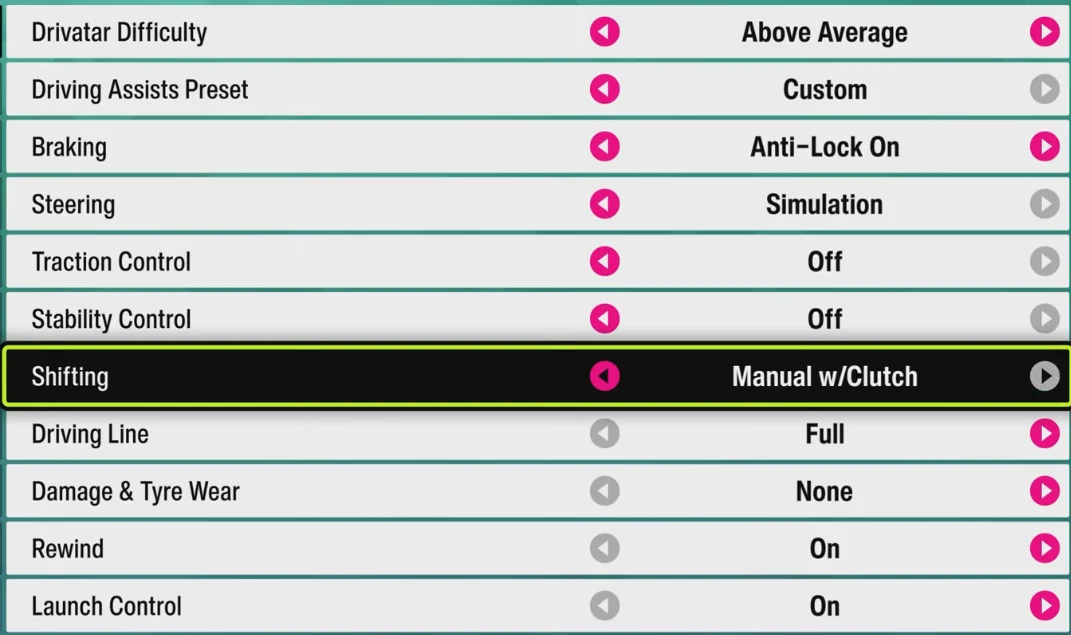
This section focuses purely on in-game settings. I’m not covering firmware software or wheel apps just yet. We’ll get to those later. For now, we’re starting with the Difficulty tab, which controls all the driving assists and helper systems.
| Setting | Recommended Value |
|---|---|
| Drivatar Difficulty | Above Average |
| Driving Assists Preset | Custom |
| Braking | Anti-Lock On |
| Steering | Simulation |
| Traction Control | Off |
| Stability Control | Off |
| Shifting | Manual w/ Clutch |
| Driving Line | Full |
| Damage & Tyre Wear | None |
| Rewind | On |
| Launch Control | On |
The purpose behind these settings is removing as many artificial assists as possible while still keeping the car manageable and enjoyable to drive. If you already invested in a steering wheel, pedals, and maybe even a shifter, then you probably want maximum control over the car instead of relying on game assistance.
For Steering mode, Simulation is absolutely the best option. This removes most of the hidden steering assistance and gives you proper control over how the car reacts. Normal steering feels much more artificial on a wheel and tends to interfere with precise inputs.
ABS is the one assist I still recommend leaving enabled for most players. A huge number of wheel users still use entry-level pedal sets, and even more expensive load-cell pedals can feel inconsistent until they’re properly calibrated. Anti-Lock Braking helps keep the car stable under braking and prevents every hard stop from turning into a wheel-locking nightmare.
Traction Control and Stability Control are better disabled entirely. These systems interfere heavily with throttle application and rotation behavior, which feels especially strange when using a wheel. Once both are turned off, the car becomes more natural to rotate, drifting becomes easier, and throttle control becomes much more rewarding.
Shifting settings depend entirely on your hardware setup. If you have a proper clutch pedal and an H-pattern shifter, Manual with Clutch is easily the best option for immersion and control. If you’re using paddle shifters, standard Manual works perfectly. Automatic can still work for relaxed cruising or casual drifting, but it removes a lot of control during competitive racing.
Driving Line, Rewind, Damage, and Launch Control mostly fall into convenience territory. They don’t directly affect force feedback or steering feel, but they can make tuning and testing significantly less frustrating, especially while learning wheel behavior.
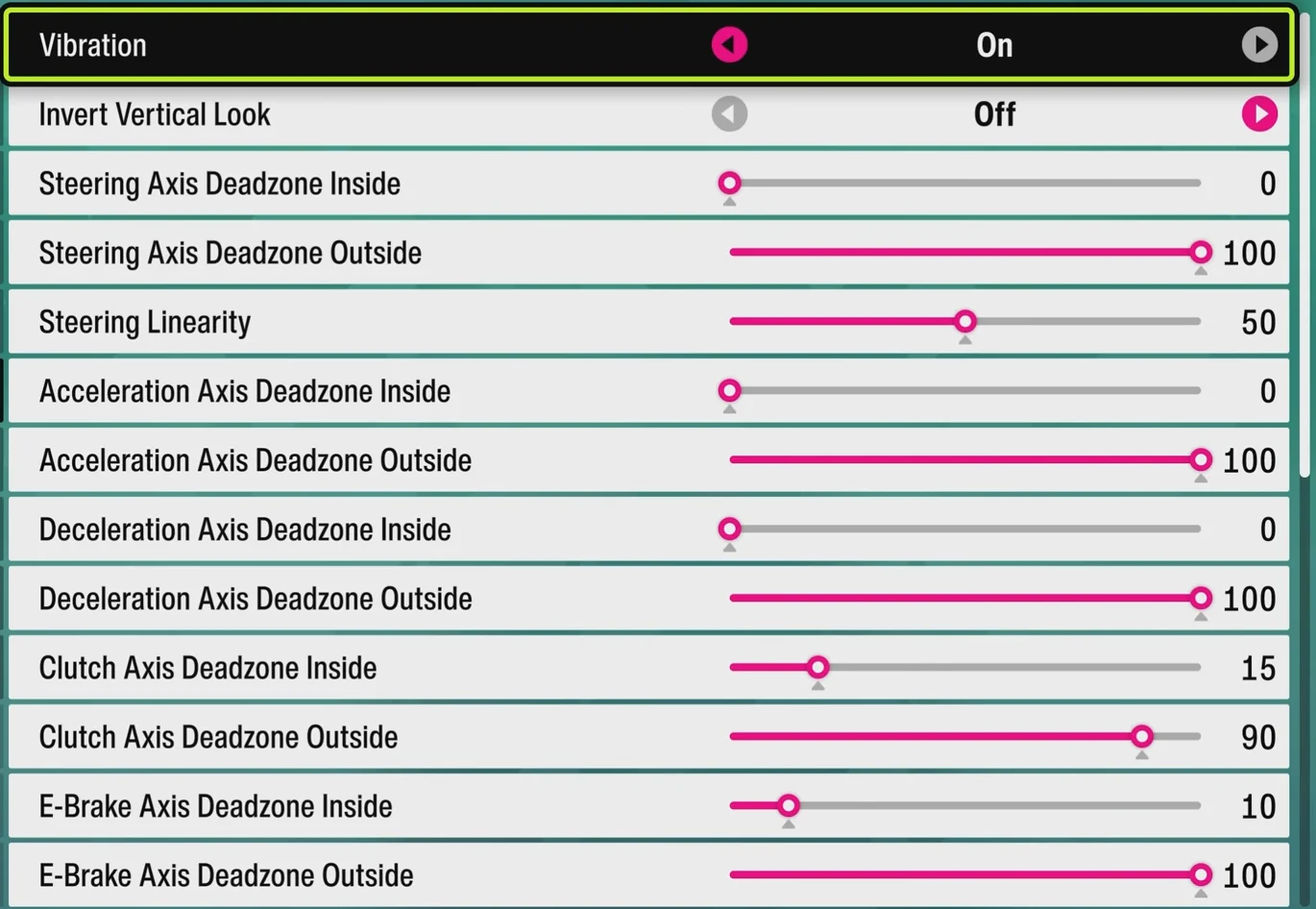
When it comes to Advanced Controls, you really want to avoid changing everything at once. Most players completely ruin their steering feel because they start adjusting every slider simultaneously without understanding what each one does.
The best approach is changing one setting at a time and then testing how the car behaves. Sometimes adjusting two connected values together makes sense, but random large-scale changes usually create terrible handling and inconsistent force feedback.
For most wheels, staying relatively close to the default setup is actually the smartest option.
| Setting | Best Universal Value |
|---|---|
| Vibration | On |
| Invert Vertical Look | Off |
| Steering Axis Deadzone Inside | 0 |
| Steering Axis Deadzone Outside | 100 |
| Steering Linearity | 25 |
| Acceleration Axis Deadzone Inside | 0 |
| Acceleration Axis Deadzone Outside | 100 |
| Deceleration Axis Deadzone Inside | 0 |
| Deceleration Axis Deadzone Outside | 100 |
| Clutch Axis Deadzone Inside | 15 |
| Clutch Axis Deadzone Outside | 90 |
| E-Brake Axis Deadzone Inside | 10 |
| E-Brake Axis Deadzone Outside | 100 |
| Vibration Scale | 0.5 |
| Force Feedback Scale | 0.8 |
| Center Spring Scale | 0.8 |
| Wheel Damper Scale | 0.5 |
| Mechanical Trail Scale | 0.9 |
| Force Feedback Minimum Force | 0.9 |
| Force Feedback Load Sensitivity | 1.0 |
| Road Feel Scale | 0.8 |
| Off-Road Feel Scale | 0.4 |
| Steering Rotation | 720 |
| Steering Lock Multiplier | 1.00 |
| Steering Speed Sensitivity | 1.00 |
Gear-driven wheels usually need more assistance from the game itself. These wheels generally provide weaker and less detailed force feedback, so they can feel loose or lifeless if spring and trail values are too low.
For these wheels, increasing Center Spring Scale to around 0.8-1.0 helps stabilize the steering. Wheel Damper Scale between 0.2 and 0.5 usually works well, while Mechanical Trail Scale between 1.0 and 1.3 helps add more detail and weight to the steering.
One important thing to understand is that going above 1.0 on Center Spring Scale often creates an artificial delay effect. Instead of getting useful tire feedback, the wheel starts fighting itself and feels sluggish.
On gear-driven wheels like the Logitech G920 or G29, increasing Wheel Damper Scale too much is also unnecessary. Those wheels already create natural resistance through their internal gears, so adding excessive artificial damping just makes the steering heavier without improving detail. Some players still prefer extra resistance, though, so part of this comes down to personal preference.
For Steering Rotation, 720 degrees usually feels better for racing on weaker wheels. While 900 degrees is technically more realistic, it can feel slow and unresponsive on lower-powered wheelbases.
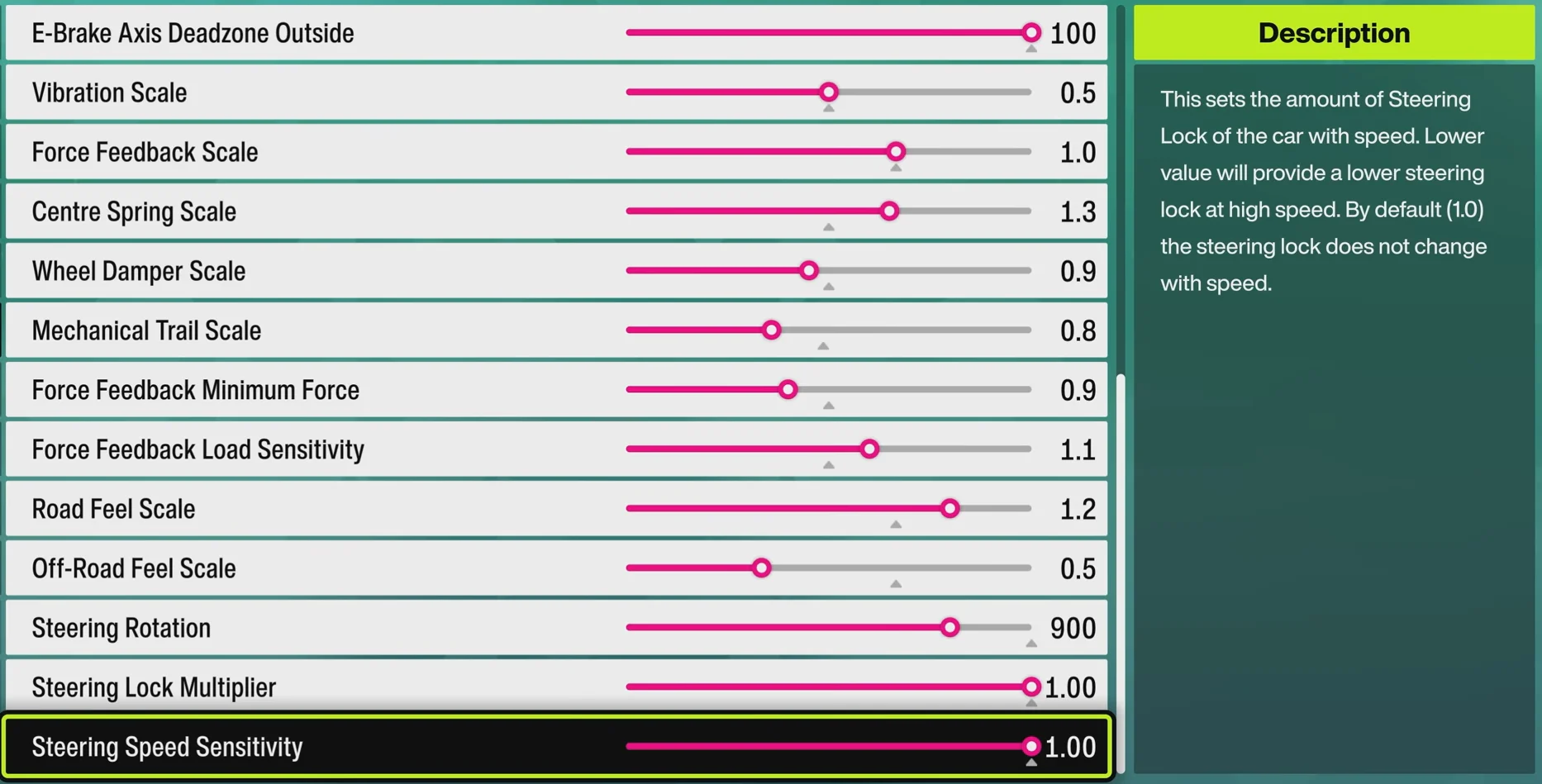
Belt-driven wheels are smoother than gear-driven models and generally feel more refined overall. However, they still don’t provide the same raw detail and torque strength as direct-drive setups.
For these wheels, sticking close to the universal preset works very well. Center Spring Scale between 0.7 and 1.0, Wheel Damper Scale between 0.4 and 0.8, and Mechanical Trail Scale between 0.9 and 1.1 usually create a balanced steering feel.
Rotation settings depend on preference. Use 720 degrees if you want faster steering response during racing, or 900 degrees if you prefer a smoother and more realistic road-car feeling.
Entry-level direct-drive wheels already provide significantly cleaner force feedback compared to gear-driven and belt-driven models, so you generally want to reduce artificial steering weight.
Too much spring or damper on direct-drive wheels can make the steering feel muddy and overly resistant. Lowering these values allows the tire feedback to come through much more clearly.
For these setups, try using Center Spring Scale between 0.4 and 0.8, Wheel Damper Scale between 0.2 and 0.5, and Mechanical Trail Scale between 0.7 and 1.0.
Rotation settings between 720 and 900 degrees both work well here. Lower values make steering feel sharper and more responsive, while higher values create smoother transitions.
High-torque direct-drive wheelbases require a much more careful approach because excessive force feedback can quickly become overwhelming.
These wheels already produce huge amounts of physical force, so adding too much in-game spring or damping often hides useful road and tire detail behind unnecessary steering weight.
For stronger DD wheels, lowering Force Feedback Scale to around 0.5-0.7 usually creates a cleaner and safer experience. Center Spring Scale between 0.0 and 0.4 and Wheel Damper Scale between 0.0 and 0.3 also tend to feel significantly better than higher values.
Mechanical Trail Scale between 0.5 and 0.9 usually works best on high-end setups because excessive trail values can make the wheel feel artificially heavy.
Steering Rotation between 720 and 900 degrees remains the safest range for most players. Meanwhile, 540 degrees is better reserved for drifting or advanced users who specifically want extremely aggressive steering response.
I’ve also seen reports on OverTake.gg from users saying that very high force feedback values caused some powerful direct-drive wheels to snap violently during crashes or aggressive steering transitions. That can genuinely become dangerous on expensive heavy-duty wheelbases, especially ones built with strong metal components instead of lightweight plastic housings.
For graphics settings and FPS optimization, check out Best Forza Horizon 6 Settings.
Most modern steering wheels include dedicated software that allows you to control how the wheel behaves across all supported games. These applications let you change steering rotation, damping, interpolation, torque limits, and many other advanced parameters.
Personally, I recommend leaving most firmware settings close to their defaults unless you fully understand what each option does. Changing too many firmware settings at once can easily make the wheel feel worse instead of better.
If you still want to experiment, always create a separate profile first so you can instantly return to your original setup whenever necessary.
| App / Hardware Setting | Value |
|---|---|
| Fanatec SEN / rotation | 540° |
| Compatibility mode | Yellow compatibility mode to enable force feedback in the game |
| Force effect / intensity / strength | 0 |
| FullForce | Not important |
| G HUB Setting | Road Racing | Drifting |
|---|---|---|
| Rotation | 900° | 540 |
| Dampener | 22 | 22 |
| Force Feedback Strength | 9 Nm | 2 Nm |
| Force Feedback Filter | 12 | 6 |
| TrueForce | 15 | 15 |
| G HUB Setting | Road Racing | Drifting |
|---|---|---|
| Sensitivity | 50 | Not changed / likely 50 |
| Operating Range | 720° | 540° |
| Centering Spring | Off | Off |
These wheels may feel noticeably lighter in Forza Horizon 6 compared to how they behaved in Forza Horizon 5. This is one of the rare situations where increasing Force Feedback above the normal recommended range can actually improve the experience.
For Logitech G29 and G923 users, setting Force Feedback somewhere around 1.20-1.30 can help restore the steering weight and detail that otherwise feels missing in-game.
| MOZA Pit House Setting | Values |
|---|---|
| Wheel Base Strength | 30% |
| Wheel Rotation | 800° |
| Suggested rotation range | 720° to 900° |
| Firmware / software version | Latest Pit House, around 1.3.9 |
| Device order | MOZA must be device #1 |
| mBooster pedal resistance | Easier to reach 100% |
At the end of the day, the only truly universal app setting is steering rotation for drifting. Most players prefer 540 degrees while drifting because it creates faster transitions and easier countersteering.
For standard racing, anything between 720 and 900 degrees works well depending on your personal preference and wheel type. Direct-drive wheels often feel best somewhere around 800 degrees because it balances responsiveness with realism.
Among the major brands, Logitech G Pro offers some of the most detailed and beginner-friendly software customization, while Fanatec and MOZA provide much more advanced adjustment options for wheel strength, compatibility, and steering behavior.
Read our other Forza Horizon 6 Guides:
Forza Horizon 6 Credits
Unlock exotic cars with instant Forza Horizon 6 Credits!
The ideal wheel settings in FH6 depend heavily on the steering wheel and wheelbase you are using, but there are several universal settings that work well for most players. Simulation Steering should always be enabled for a more direct and natural driving feel. ABS is recommended for stability under braking, while Traction Control and Stability Control are usually better turned off to improve throttle control and make the car feel less restricted. If the wheel starts feeling overly stiff or resistant, reduce the Damper Scale and Center Spring values gradually until the steering becomes smoother without feeling disconnected.
Simulation Steering is generally the better option when using a steering wheel because it removes a large amount of hidden steering assistance. This gives you more accurate control over the car and creates a more realistic driving experience overall. It also improves drifting, racing precision, and throttle management, especially once you become comfortable with wheel inputs.
For regular racing, most players will feel comfortable using somewhere between 720° and 900° steering rotation. The best value depends on the capabilities of your wheel and how responsive you want the steering to feel. Lower values create faster steering response, while higher values feel smoother and more realistic. For drifting, many players prefer 540° because it allows quicker countersteering and makes catching slides significantly easier.
If your wheel feels excessively heavy, the most common cause is having Force Feedback Scale, Wheel Damper Scale, or Center Spring Scale set too high. Lowering these values step by step usually fixes the issue. However, completely removing resistance is not recommended because the steering can start feeling loose, floaty, and lacking in tire feedback.
Start by updating your wheel firmware and making sure the game correctly recognizes your wheel as the active input device. If the wheel pulls in the wrong direction or force feedback feels inverted, enable the Invert Force Feedback option in the settings. If steering, throttle, or brake inputs activate on their own, adjusting the deadzone settings usually solves the issue.